Trackers — risks, issues, assumptions, dependencies, decisions and ideas
Keep risks, issues, assumptions, dependencies, decisions and ideas beside your requirements, add them quickly and link them to what they affect.
Updated 19 October 2026
Trackers holds the things that are not requirements but matter to them: ideas, risks, dependencies, assumptions, issues and decisions. Each has its own tab, and each item can be linked to the requirements it affects.
Add tracker items quickly
- Open your project. In the left navigation, choose Trackers.
- Choose a tab: Ideas, Risks, Dependencies, Assumptions, Issues or Decisions.
- Click in the last row, which says for example Add Risk — type and press Enter.
- Type a title and press Enter. The row clears and stays ready for the next one.
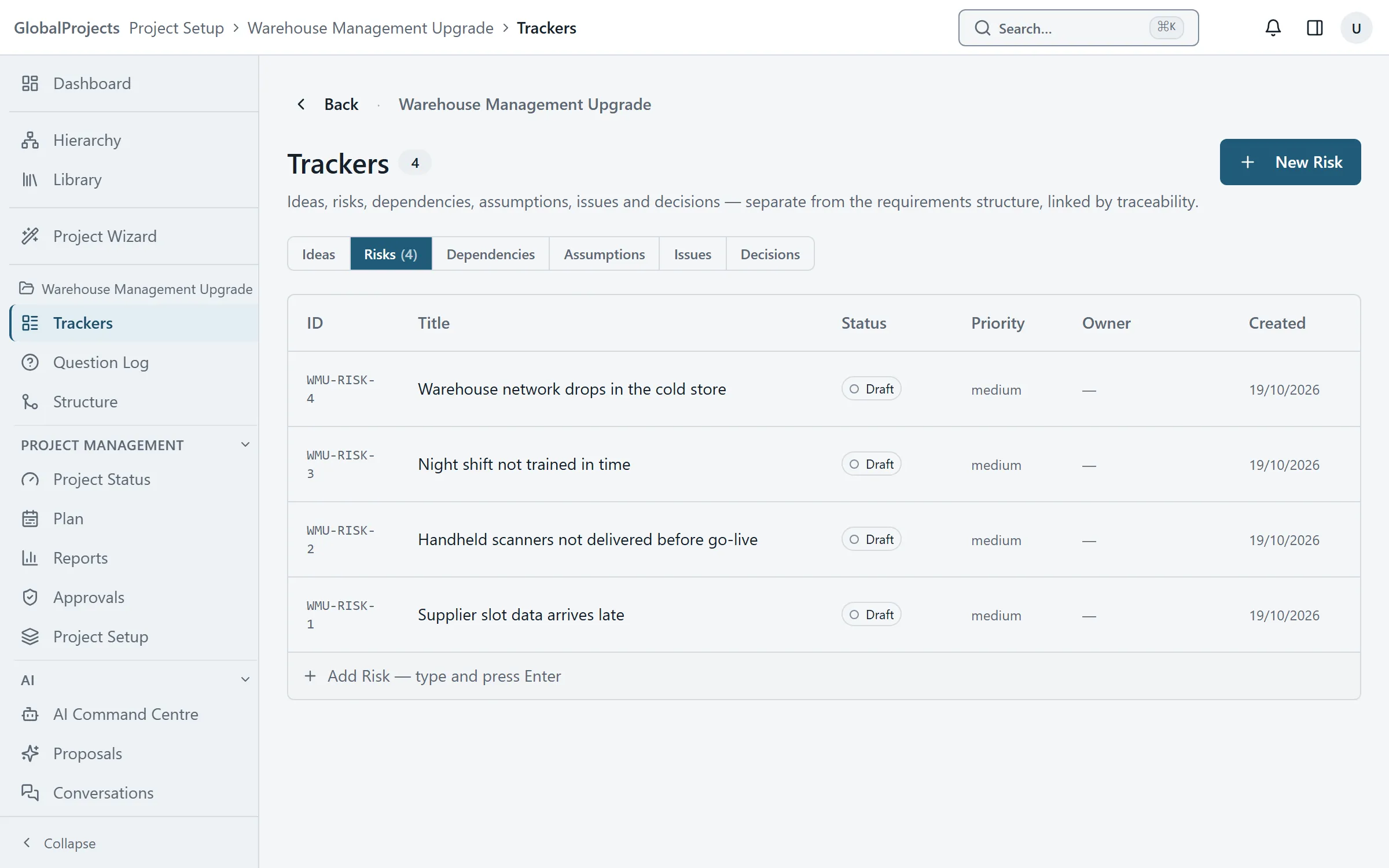
Add an item with its details
- On the tab you want, choose the button at the top, for example New Risk.
- Type the Title and a Description.
- Fill in the fields for that kind of item. A risk has Likelihood, Impact and Mitigation; an issue has Severity and Resolution; a decision has Decision and Rationale.
- Choose a Priority and an Owner.
- Choose Create Risk (or the equivalent for the tab you are on).
Move an item on and link it
- Click an item to open it.
- Choose one of the status buttons at the top, for example In Progress or Review.
- Under Traceability, search for a requirement and choose it to link the two.
- Choose Close.
Turning an idea into a requirement
Open an idea and choose Convert to requirement. Pick the Level and the Parent, then choose Convert. A new requirement is created with a link back to the idea, and the idea is kept with its own status.
What you can change after creating an item
In the item’s window you can change its status and the fields for its kind. The description, title, priority and owner are set when you create the item.
Adding from anywhere
Press Ctrl+K and choose New risk…, New issue… or New idea…. The window stays open after each one, so you can capture several in a row during a meeting.
Good to know
- New items start in Draft.
- Delete in an item’s window removes it straight away, without asking again.
- If your project also shows Risk Register, Issue Log, Assumption Log or Dependency Register in the left navigation, those are separate lists. Items there do not appear in Trackers, and the other way round. Agree with your team which one you use.
- Stakeholders and guests can add ideas but not other tracker items.
Related articles
- Link items and follow the trace
Link a requirement to a risk, a scope line or another requirement by searching for it, and see an item's parents, children and links in the side panel.
- The Question Log
Raise open questions for the project or against any item, record the answer and who gave it, and let an answer propose the requirements it unblocks.
- The requirements hierarchy
How requirements sit inside each other, how to add, move and delete them in the Hierarchy view, and the five ways to look at the same requirements.