AI spend across the company
See your plan's AI allowance and what is used, AI spend across every project this month, and each project's cap.
Updated 22 October 2026
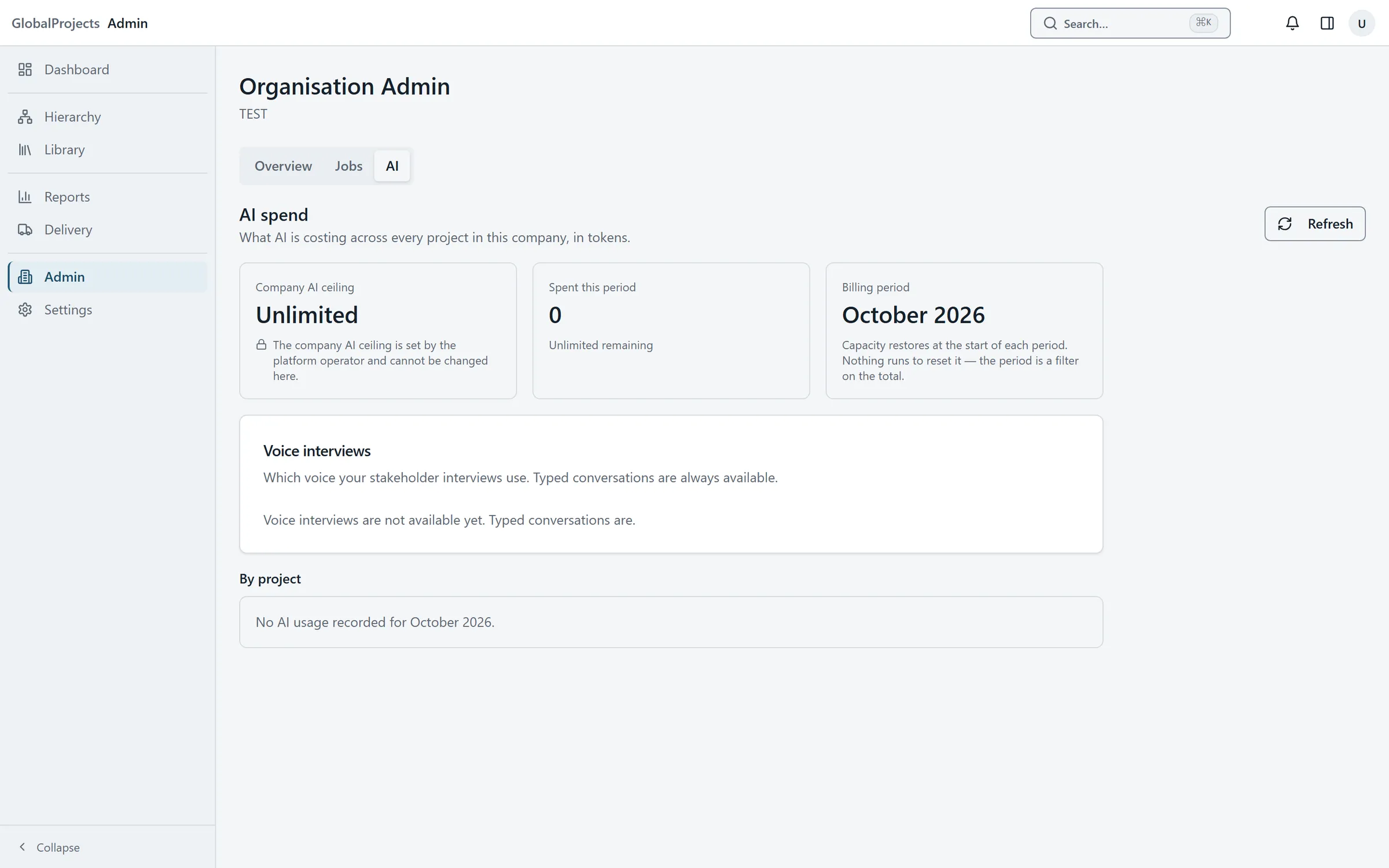
AI use is measured in tokens — roughly, the amount of text the AI reads and writes. The AI tab in Admin shows how many tokens the company has used this period and which projects used them.
See the company's AI spend
- In the left navigation, choose Admin, then the AI tab.
- Under Plan allowance this month, read AI tokens and Voice credits. Each shows what has been used of your plan's monthly allowance, with a bar. At 80% it turns amber, and at 100% it says what is paused.
- Read Company AI ceiling, Spent this period and what is remaining.
- Read Billing period. Use returns to zero at the start of each period.
- Under By project, see each project's Tokens, its Share of the total, and its Project cap.
- Choose Refresh to see the latest figures.
The three limits
- Project cap — set on each project, under Project Setup on its AI tab. See Automatic runs and spend caps.
- Company AI ceiling — set for your company by GlobalProjects. It cannot be changed on this screen. Contact us if it needs to change.
- Your plan’s AI allowance — on plans that include AI, a monthly allowance, shown under Plan allowance this month with what has been used. At 80% a banner tells company administrators, and at 100% new AI runs pause until the 1st of the month or until you upgrade. Choose Manage your plan on the banner to see your plan. No limit means no plan limit applies: an unlimited plan, or your company uses its own AI keys.
The plan allowance and the Company AI ceiling are separate limits. The ceiling can say Unlimited while the plan allowance still applies.
When any limit is reached, AI pauses where it applies and people see a message saying so. Sources can still be added, and nothing already created is affected.
Who can see this
The AI tab appears only for company administrators who hold the configure permissions permission across the company.
Related articles
- Automatic runs and spend caps
Set a project's AI spend cap, choose which AI steps run by themselves when a source is uploaded, and see what happens when a cap is reached.
- Getting AI switched on for your company
GlobalProjects sets up the AI service your company uses. How to tell whether it is ready, and how to ask us to switch it on or change it.
- Run the AI from the AI Command Centre
Choose what you want the AI to do, pick the sources or requirements it reads, run it, and follow its progress in Activity.