Getting AI switched on for your company
GlobalProjects sets up the AI service your company uses. How to tell whether it is ready, and how to ask us to switch it on or change it.
Updated 19 October 2026
The AI in GlobalProjects reads your sources and proposes requirements, questions and more. Before anyone in your company can use it, the AI service behind it has to be set up for your company. We do that for you: there is no setting for it in the product.
Check whether AI is ready
- Open any project. In the left navigation, under AI, choose AI Command Centre.
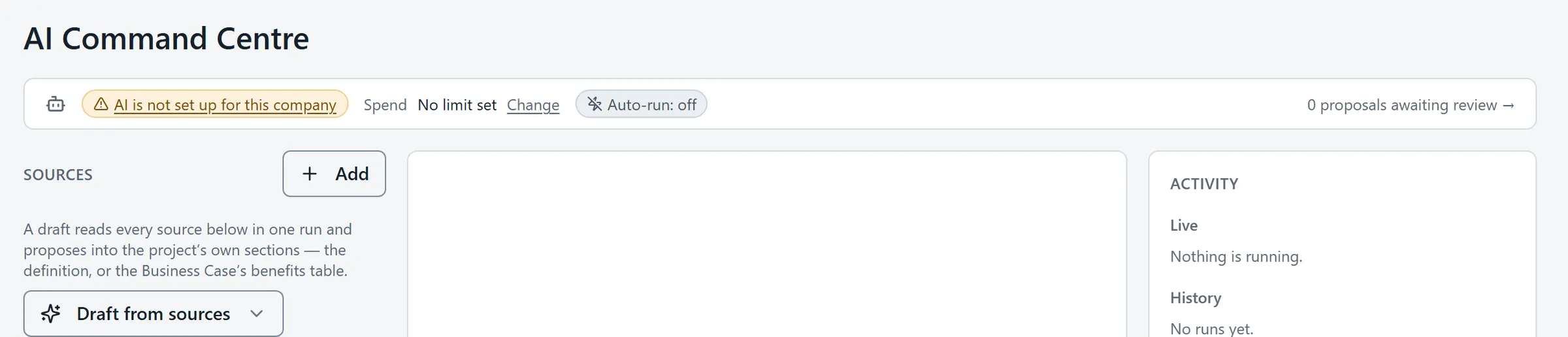
- Look at the strip at the top of the page.
- If it says AI ready, AI is set up and people with the right permission can use it.
- If it says "AI is not set up for this company", AI has not been switched on yet. Contact us to arrange it.
Asking us to switch AI on, or to change it
Contact us and tell us your company’s name and what you need: to switch AI on, or to change how it is set up. We will reply to arrange it. You do not need to change anything in the product yourself.
What works before AI is switched on
Everything except the AI itself. You can add sources, write and structure requirements, raise questions, plan, report and sign off. The Project Wizard needs AI, so until it is switched on, choose Skip the wizard and set projects up by hand.
If a screen points you to Admin
Some messages suggest setting AI up under Admin, on the AI tab. That tab shows what AI is costing, not how it is set up. To switch AI on or change it, contact us.
Spend and limits
Once AI is on, its use is counted against limits you can see on the AI tab in Admin. See AI spend across the company.
Related articles
- AI spend across the company
See your plan's AI allowance and what is used, AI spend across every project this month, and each project's cap.
- Run the AI from the AI Command Centre
Choose what you want the AI to do, pick the sources or requirements it reads, run it, and follow its progress in Activity.
- The Project Wizard
Set a new project up from its source material in ten guided steps — add sources, run each step, review what it proposes, accept or skip.