The reports library
Open a project's reports on screen, narrow them with parameters, export them to Word or a spreadsheet, and find every file the project has produced.
Updated 19 October 2026
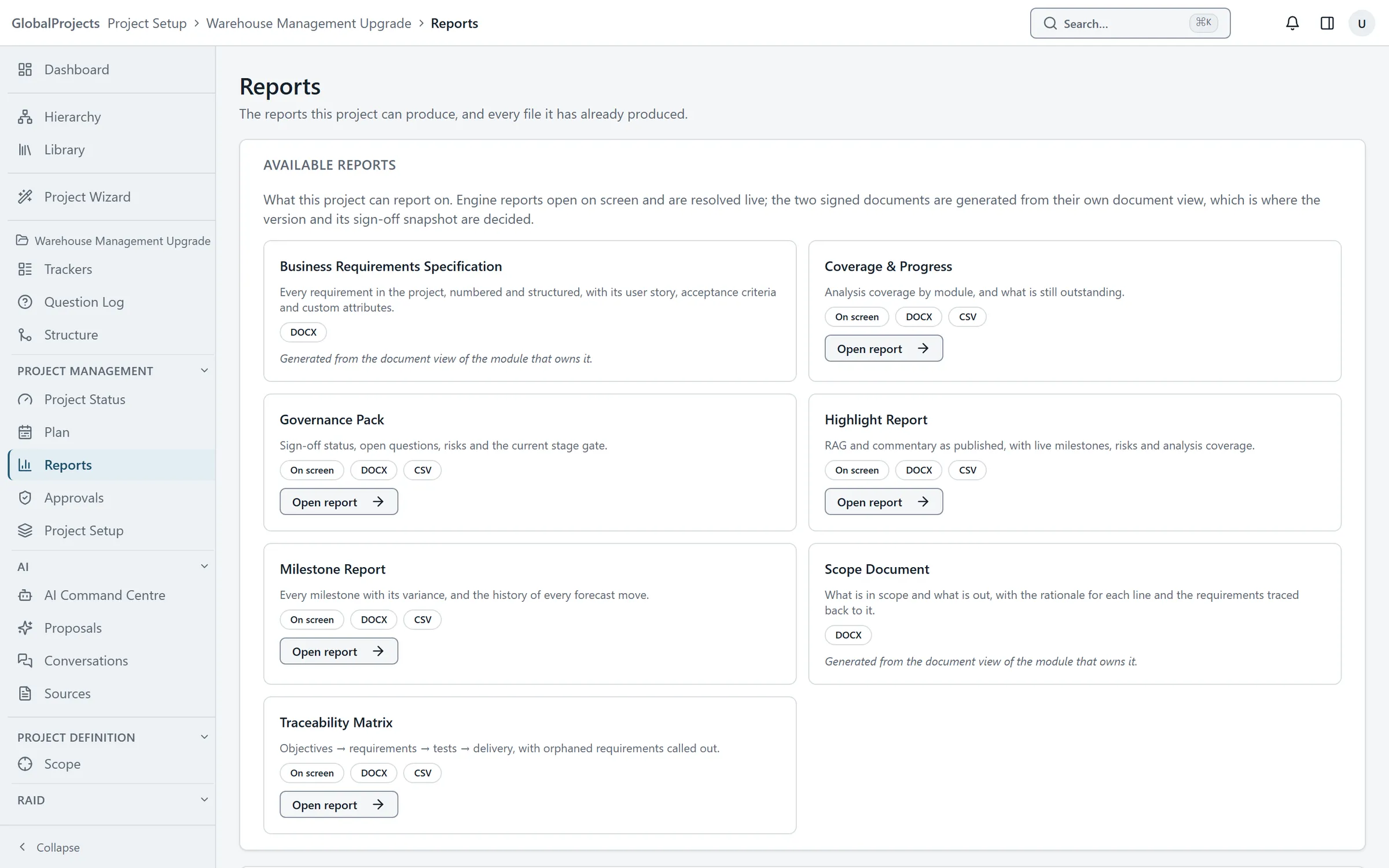
Every project has a Reports page. It lists the reports the project can produce and every file it has already produced. Reports open on screen and are always worked out from the project as it is now.
Open a report
- Open the project. In the left navigation, under Project Management, choose Reports.
- Under Available reports, find the report you want.
- Choose Open report.
- If the report has options, such as Class or Levels, change them above the report. Choose Reset to go back to the defaults.
Export a report
- With the report open, choose Export ▾.
- Choose Word document (.docx) or Spreadsheet (.csv).
- Wait for "Preparing your download…". The file downloads with the options you chose.
- Choose ← Back to Reports to return to the list.
The reports
- Traceability Matrix — requirements and what they link to, with the ones that link to nothing called out. See The traceability matrix.
- Governance Pack — sign-off status, open questions, open risks and issues, and the current stage gate.
- Coverage & Progress — analysis coverage by module, and what is still outstanding.
- Highlight Report — the latest published status report, with live milestones and risks. See Milestones and project status.
- Milestone Report — every milestone with its variance and the history of each forecast move.
- Business Requirements Specification and Scope Document — generated from their own document views, where their versions and sign-off are kept.
Files the project has produced
Artefacts & Files, on the same page, lists every document generated in the project: its type, format, version, date and who generated it. Filter by type, format or date, and choose the download icon to download one.
Reading a report
Number tiles carry a word such as On track, Needs work or At risk. Under a chart, choose Show table to see the same numbers as a table. Click a column heading to sort a table, and click an item’s key to open it.
Who can see and export
Anyone on the project can open its reports. Exporting needs the generate reports permission, and the project’s export setting must allow you to export. If it does not, the message says it is a policy setting, not a fault.
Related articles
- The traceability matrix
See which requirements link to scope, risks, tests and each other, find the requirements that link to nothing, and narrow the matrix to one class or level.
- Export to Word and Excel
Download your requirements as a CSV that Excel opens, or as a Word document, and see who your project lets export.
- The signed BRS
Generate a numbered BRS that records who signed what, check that approved text has not changed since, and download any version.