Run the AI from the AI Command Centre
Choose what you want the AI to do, pick the sources or requirements it reads, run it, and follow its progress in Activity.
Updated 19 October 2026
The AI Command Centre is where you ask the AI to do a piece of analysis: extract requirements from a transcript, find duplicates, group requirements into features, and more. Whatever it produces arrives as proposals for you to review. Nothing is written to the project until a person accepts it.
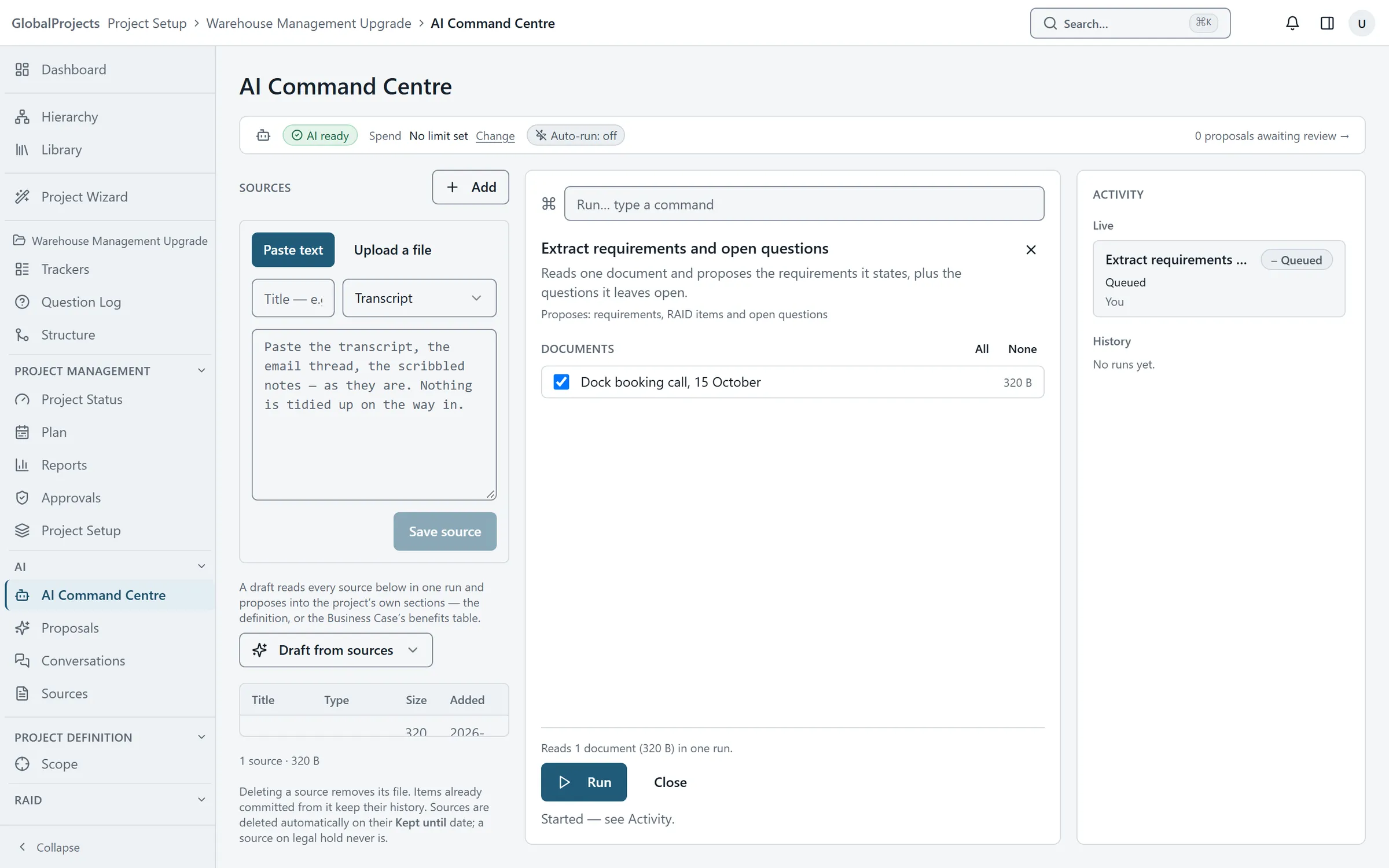
The page has three columns: Sources on the left, the commands in the middle, and Activity on the right.
Run a command
- Open your project. In the left navigation, under AI, choose AI Command Centre.
- Check the strip at the top says AI ready.
- In the middle column, find the command you want. They are grouped under Extract, Draft, Analyse, Structure and Answer. You can also type in Run… type a command.
- Choose the command. Its run sheet opens.
- Choose what it reads: tick the Documents to use, or choose Whole project, Under… or Selected… for requirements.
- Read the line above Run. It says what will be read and in how many runs.
- Choose Run. You see "Started — see Activity."
Follow it and review the result
- Watch the Activity column. A run moves from Queued to Running to Done.
- When it is done, the row says how many proposals it made.
- Choose Review on the row to open the proposals.
Starting from a source
Each source in the Sources column has a Run pass ▾ menu with the commands that read one document at a time. Draft from sources ▾, above the list, offers the commands that read every source together. Both open the run sheet with your choice filled in; neither runs anything until you choose Run.
Long documents
A long document is read in parts. In Activity, the run says “Split into” a number of parts, and each part shows “Part 2 of 5” and so on. The proposals from every part arrive together for review.
When a run is refused
The reason appears in red below Run, in a sentence such as “This selection is too large to analyse in one go”. Choose a smaller part — for example Under… a single epic — and run again. A run can also be refused because the project’s AI spend cap has been reached; see Automatic runs and spend caps.
Each run costs money
Every Run is a paid call to the AI, and there is no second “are you sure”. Read the line above Run before you press it.
Who can run the AI
You need the run ai steps permission on the project. The Business Analyst, Project Owner, Project Manager, Product Owner and SME / Acting BA roles have it. Without it you can still add and read sources.
If the strip says “AI is not set up for this company”, AI has not been switched on for your company yet. Contact us and we will set it up — see Getting AI switched on for your company.
Related articles
- Add sources — notes, transcripts and documents
Give the project the material the AI reads — paste a transcript or upload a document — then view it, hold it or delete it.
- Review what the AI proposes
What "AI proposes, you decide" means in practice — read each proposal and its evidence, edit it or ask the AI to change it, then accept or discard.
- Automatic runs and spend caps
Set a project's AI spend cap, choose which AI steps run by themselves when a source is uploaded, and see what happens when a cap is reached.