The schedule and the Gantt chart
Switch a project to a full schedule, build the work breakdown with durations and dependencies, paste tasks from Excel, and reschedule on the Gantt chart.
Updated 19 October 2026
A full schedule adds tasks, dependencies and a Gantt chart to the plan. Dates are worked out for you: change a duration or a dependency, and everything after it moves.
Switch to a full schedule
- Open the project and choose Plan, then the Schedule tab.
- Choose Switch to a full schedule. You see "This project now plans with a full schedule."
- Or choose Project Setup, and on the General tab under Plan, set Planning level to Full schedule and choose Save Plan Settings.
Build the work breakdown
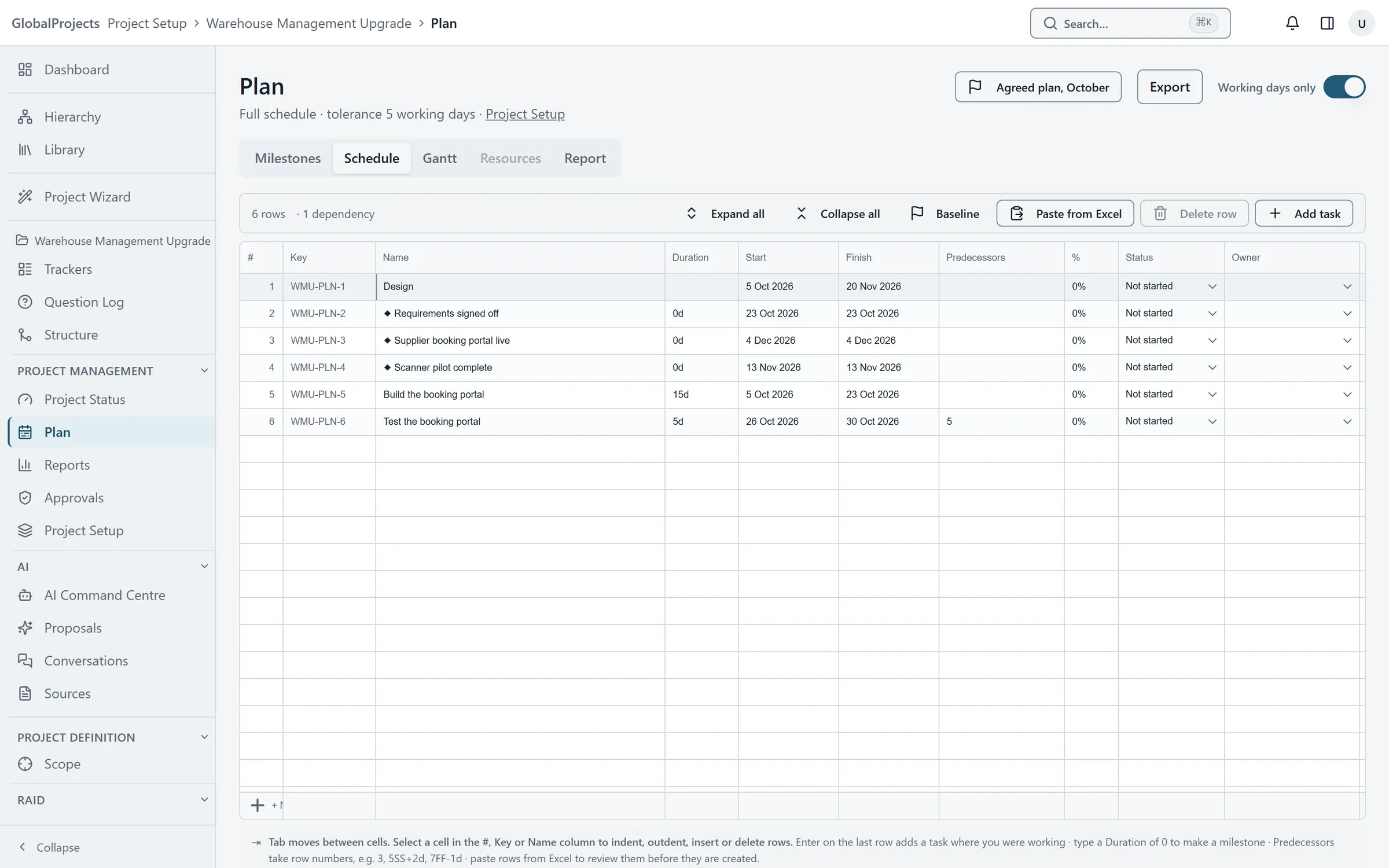
- On the Schedule tab, choose Add task, or go to the last row and press Enter.
- Type the task's Name and its Duration in working days, for example 5d. A duration of 0 makes a milestone.
- To put a task under the one above it, click its #, Key or Name cell and press Tab. Press Shift+Tab to move it back out.
- In Predecessors, type the row numbers it depends on, for example 3, or 5SS+2d for a start-to-start link with two days' lag.
- Read Start and Finish. They are worked out from the durations and dependencies.
Reschedule on the Gantt chart
- Choose the Gantt tab.
- Drag a bar to move it, or drag one end to change its duration.
- Hold Shift and drag from one bar to another to link them.
- Turn on Critical path to see the tasks that set the end date.
- Choose Today to scroll to today, and use + and − to zoom between Quarters, Months, Weeks and Days.
Kinds of dependency
FS (finish to start) is the default. SS is start to start, FF finish to finish and SF start to finish. Add a lag such as +2d or a lead such as -1d. On the Gantt chart, hold Alt as you drop a link to choose its kind.
Pasting tasks from Excel
Choose Paste from Excel, paste the rows, and map each column to Name, Duration, Start, Finish, Predecessors or Outline level. Check the preview and choose Create. Nothing is created until you do.
Pinning a date
Typing a Start date on a task pins it: it will not start before that date. To let the schedule move it again, set Constraint back to As soon as possible.
When the schedule cannot place a row
A red strip under the grid lists any row the schedule could not place, and why — for example, tasks that depend on each other in a circle. Fix the dependency and the dates are worked out again.
Who can change the schedule
Changing tasks needs the manage plan permission. Switching the planning level needs manage project settings. Everyone on the project can read the schedule and the Gantt chart.
Related articles
- Milestones and project status
Add milestones and phases, see each one's health against your tolerance, and write the highlight report that records the project's RAG.
- Baselines, variance and resources
Take a baseline of the plan so you can see how far dates have moved, and add the people doing the work to see who is over-allocated.
- Paste requirements from Excel
Copy a range from Excel, map its columns, check a preview and create the requirements in one go — nothing is created until you confirm.