Request and give sign-off
Ask a named person to sign off a requirement or a whole branch, approve or reject what is waiting for you, and see what happens when approved work changes.
Updated 19 October 2026
A sign-off is addressed to one named person. Only that person can approve or reject it — not a role, and not an administrator acting for them. The record keeps who asked, who decided, when, and why.
Request sign-off
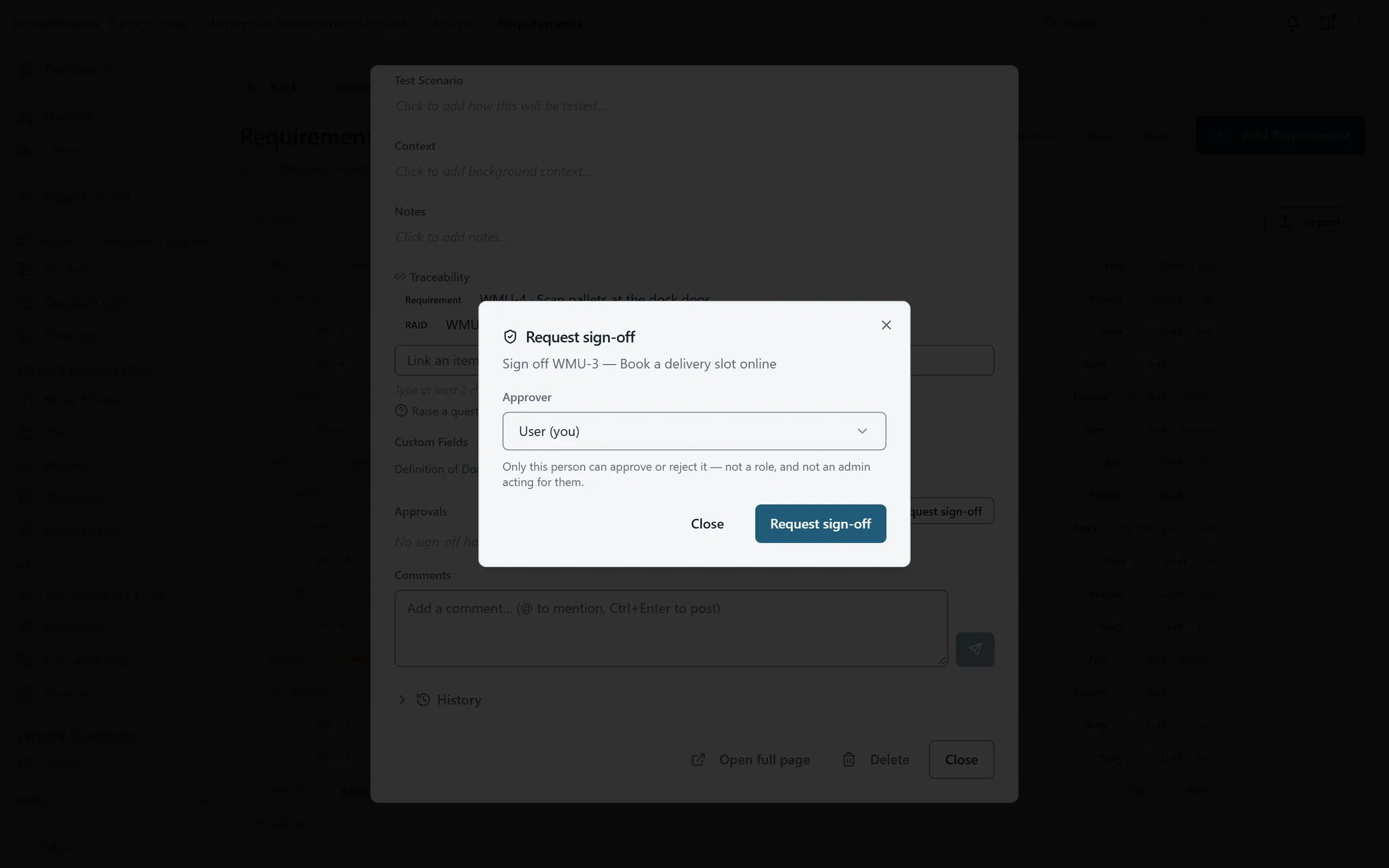
- Open the requirement. Scroll to Approvals and choose Request sign-off.
- Under Approver, choose Select a person… and pick the person.
- Choose Request sign-off. The window stays open so you can ask a second person; choose Close when you have finished.
- To ask for sign-off on a requirement and everything under it, use the Hierarchy view: point at the row and choose Request sign-off for subtree.
Approve or reject
- In the left navigation, choose Approvals. The For me tab lists everything waiting for your signature.
- Click a row to read the item first.
- Choose Approve.
- Or choose Reject, type why in the box, and choose Confirm reject. A reason is required.
Pass a request to someone else
- Open the requirement and find the pending row under Approvals.
- Choose Reassign.
- Under New approver, pick the person and choose Reassign. The earlier request is withdrawn, not rejected.
What the requester sees
Next to the requirement’s title, a badge shows its state: Awaiting followed by the approver’s name, Approved with the date, Rejected, or Changed since approval. The approver is notified when you ask, and you are notified when they decide.
When approved work is edited
By default the edit goes ahead and the sign-off no longer covers the new text: the badge changes to Changed since approval, and on the Approvals page the row is struck through. Ask for sign-off again. A project can instead lock approved items so they cannot be edited without the right permission; see Statuses and transitions.
Where an approval moves the item
When a sign-off is approved, the item moves to the status your project has chosen, Approved by default. A rejection moves it back to Draft by default.
All of the project’s approvals
On the Approvals page, the All project approvals tab lists every request with its status and approver. Use the filter to show only Pending, Approved, Rejected, Superseded or Withdrawn.
Good to know
- Anyone active in the project’s organisation can be chosen as approver.
- To approve or reject, the named person also needs the approve reject permission. If they do not have it, their decision is refused; ask a company administrator to check their role.
Related articles
- The signed BRS
Generate a numbered BRS that records who signed what, check that approved text has not changed since, and download any version.
- The history of an item
See every change to a requirement or tracker item — what changed, from what to what, who made it and when — including the changes the AI made.
- Statuses and transitions
Set a project's own statuses, choose which moves between them are allowed and who may make them, and decide what a sign-off does to an item's status.