Invite people and manage their access
Invite someone with a link, choose their role and projects, and change the roles of people already in your company.
Updated 19 October 2026
Company administrators invite people and decide what they can do. You create an invitation link and send it to the person yourself; GlobalProjects does not email it for you. The link works for 7 days.
Invite someone
- In the left navigation, choose Admin. On the Overview tab, choose Users.
- Choose Invite user.
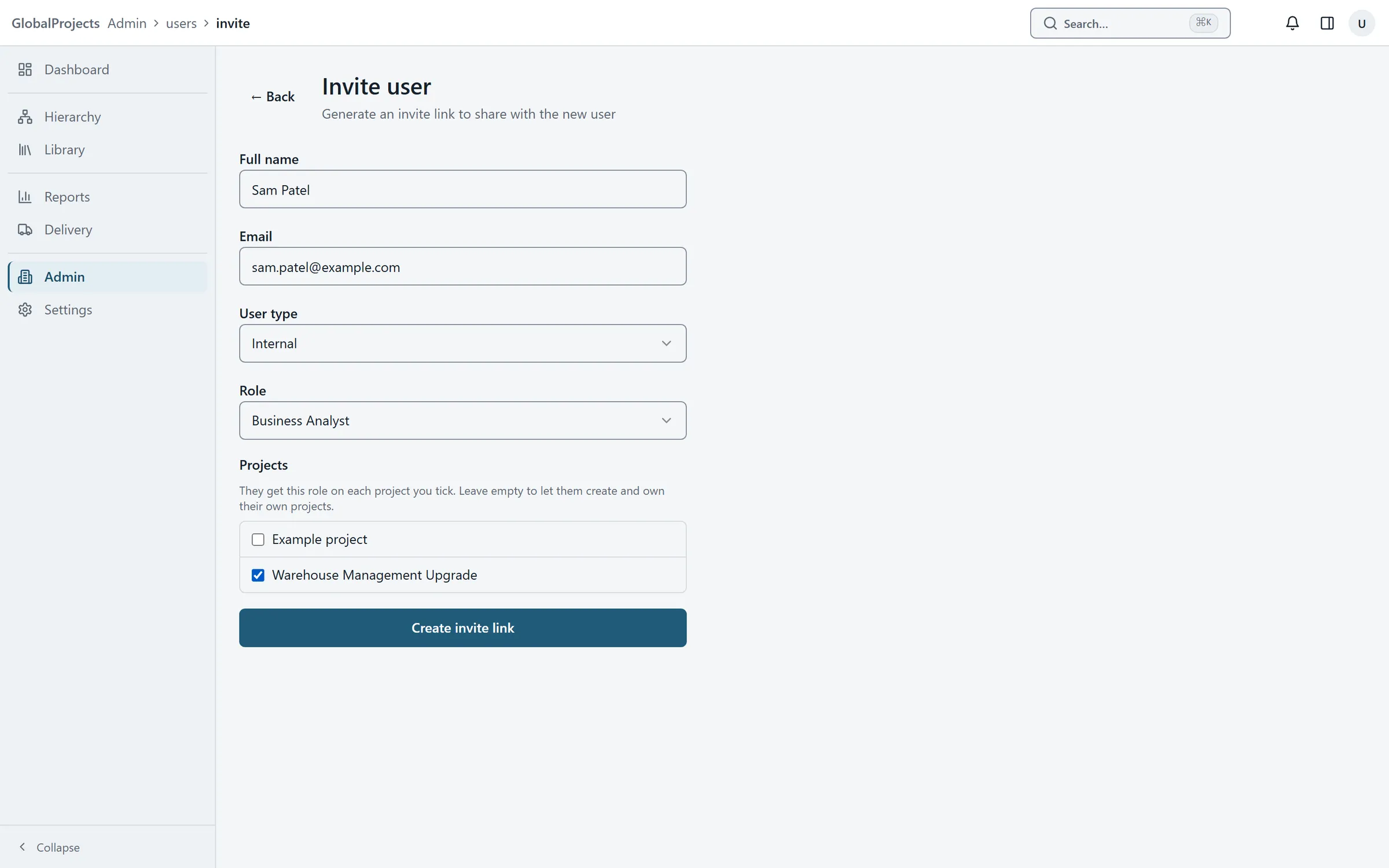
- Type their Full name and Email.
- Choose the User type: Internal for your own staff, Guest or Third-party for people from outside.
- Choose their Role. For a project role, tick the projects they should have it on under Projects, or leave them all unticked to let them create and own their own projects.
- Choose Create invite link.
- Choose Copy and send the link to the person, for example by email.
Change someone's roles
- In Admin, choose Users, then View / Edit on the person's row.
- Under Global Roles, choose + Add global role to give a role across the company, or the cross on a role to take it away.
- Under Project Roles, choose a project and a role, then Add. Choose Remove on a row to take a project role away.
What the person sees
When they open the link, they see Create account with their email filled in. They choose a password and choose Create account, and they are in. If the link has expired, they see “This invite link is invalid or has expired.” Create a new invitation for them.
Inviting a company administrator
You cannot invite someone straight into Global Admin or System Admin: the invitation will not complete, and the person sees “This invite cannot be completed — contact your administrator.” Invite them with another role, then add the administrator role from their page under Global Roles once they have joined.
Seats
Each internal person uses a seat on your company’s plan. When every seat is used, inviting another internal person is refused with a message saying so. Guests and third parties do not use a seat.
Finding people
Use the User type and Status filters above the list. Invited means they have not used their link yet.
Who can do this
The Admin area is for company administrators — people with the Global Admin role.
Related articles
- Roles and permissions, in plain language
What each built-in role can do, how a role held across the company differs from one held on a project, and how to make a role of your own.
- Organisations
Create organisations for the divisions of your company, switch between them, and set each one's name, approved email domains and outside access.
- Sign in and find your way around
Sign in to your company's workspace, accept an invitation, and learn the top bar, the left navigation, search and notifications.