Organisations
Create organisations for the divisions of your company, switch between them, and set each one's name, approved email domains and outside access.
Updated 19 October 2026
An organisation is a division of your company, such as a region or a business unit. Projects and people belong to an organisation. Most companies start with one; you can add more when divisions need to keep their work apart.
Create an organisation
- In Admin, on the Overview tab, choose Organisations.
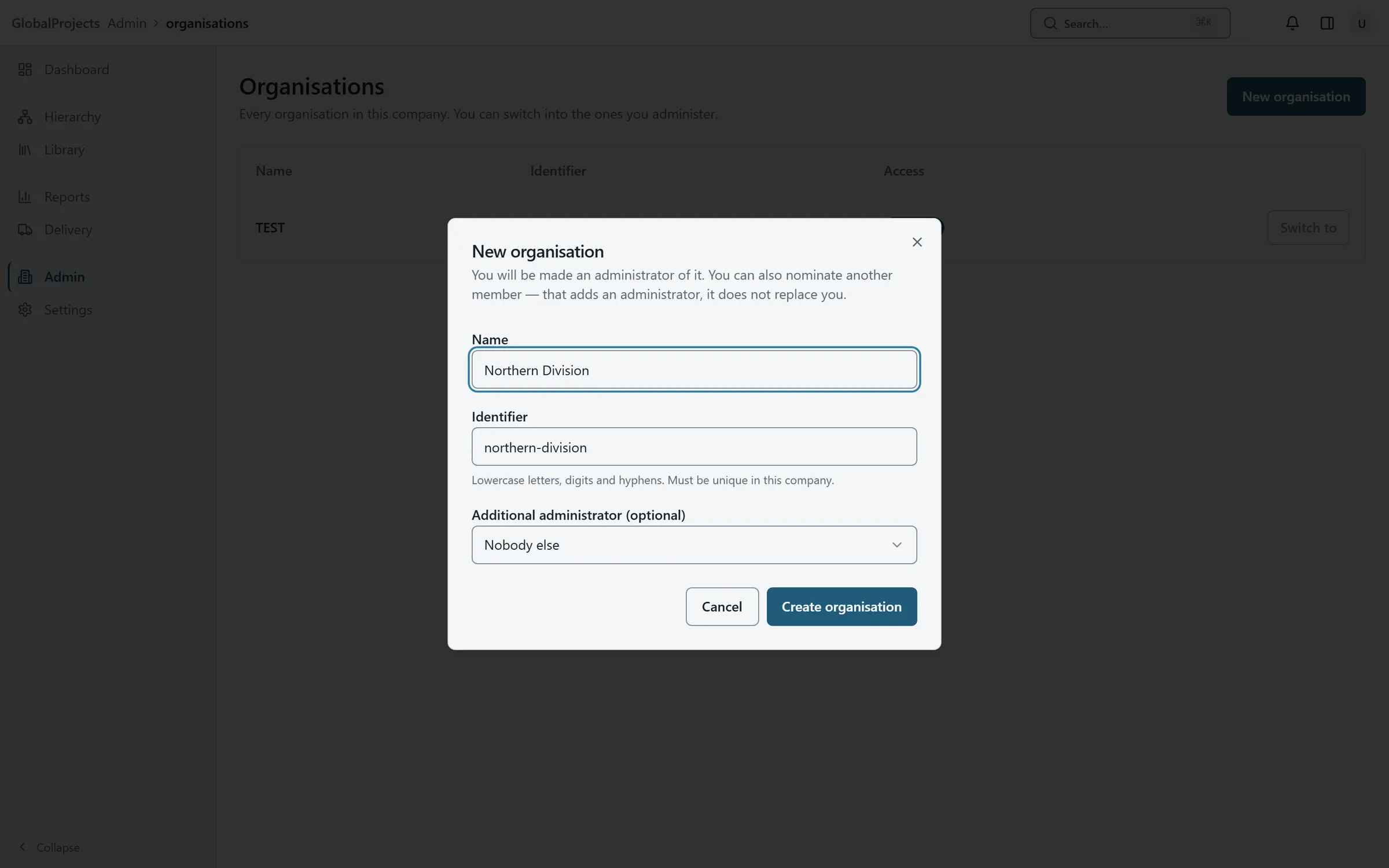
- Choose New organisation.
- Type the Name. The Identifier is filled in from it; change it if you like, using lower-case letters, digits and hyphens.
- Under Additional administrator (optional), choose someone else to administer it, or leave Nobody else. You are made an administrator of it either way.
- Choose Create organisation.
Switch to another organisation
- Choose the organisation's name in the top bar. It only appears when you belong to more than one.
- Choose the organisation you want. The app reloads on its Dashboard.
- Or, in Admin, choose Organisations and Switch to on its row.
Set an organisation's details
- Switch to the organisation, then in Admin choose Organisation Settings.
- Change the Organisation name if you need to.
- Under Approved email domains, type a domain such as example.com and choose Add.
- Choose who from outside can open projects under External project access.
- Choose Save changes. You see "Settings saved."
Outside access
External project access decides whether guests and third parties can open projects at all:
- No external access — they cannot open any project, even if assigned to one.
- Approved domains only — an assigned outside user must also sign in from one of the domains you list.
- Project-managed — being assigned to a project is enough.
A project can narrow this, never widen it. Internal staff are not affected.
Guest self-registration lets people with an approved email domain register as guests themselves. Third-party access turns third-party users on for the organisation.
Data export
Data export sets the default for every project: Anyone with a project role, or Only users with the Data export permission. A project can change it either way. Under either setting, a person needs a role on the project itself.
Good to know
- The Organisations list shows Current, Member or No access for each one. You can switch only into those where you have a role.
- Organisations cannot be renamed from the list; rename the current one in Organisation Settings.
- Branding belongs to the whole company, not to one organisation. See Your company’s sign-in page.
Related articles
- Invite people and manage their access
Invite someone with a link, choose their role and projects, and change the roles of people already in your company.
- Roles and permissions, in plain language
What each built-in role can do, how a role held across the company differs from one held on a project, and how to make a role of your own.
- Your company's sign-in page
Put your company's logo, colours and wording on the page your people see before they sign in, and preview it before you save.