Baselines, variance and resources
Take a baseline of the plan so you can see how far dates have moved, and add the people doing the work to see who is over-allocated.
Updated 19 October 2026
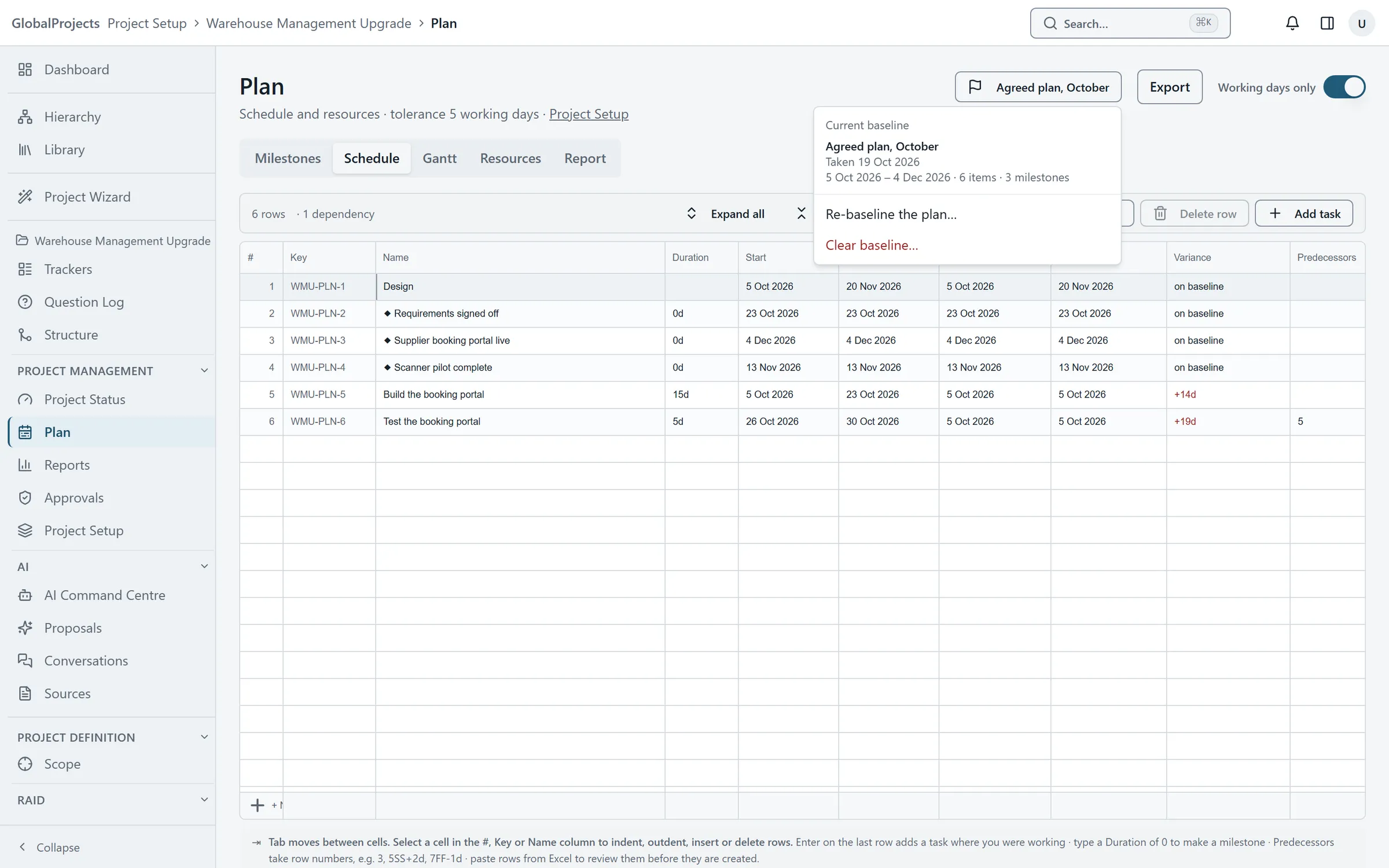
A baseline is a snapshot of the plan's dates, usually taken when the plan is agreed. From then on, every item shows its variance: how many working days its forecast is ahead of or behind the baseline. Taking a baseline moves no dates.
Set a baseline
- Open the project and choose Plan.
- Open the Baseline menu at the top of the page and choose Set baseline….
- Under Name this baseline, type a name people will recognise, for example "Approved at Gate 2".
- Choose Set baseline. You see how many items it covers.
See the variance
- On the Schedule tab, turn on Baseline in the toolbar.
- Read Baseline start, Baseline finish and Variance. For example +4d is four working days late; −2d is two days early.
- On the Gantt tab, turn on Baseline to draw the baseline under each bar.
Add a resource and assign work
- For resources, the project's Planning level must be Schedule and resources. Set it in Project Setup, on the General tab, under Plan.
- On the Plan page, choose the Resources tab and + Add resource.
- Choose Person or Role, type the Name, and set Hours a day and Availability % if they differ from the usual.
- Choose Add resource.
- On the Schedule tab, type the resource's name in a task's Resources cell, for example Jane[50%] for half her day.
Re-baselining
Choosing Re-baseline the plan… replaces the current baseline on every item. Earlier baselines are kept as a record under Earlier baselines, with their names, dates and milestone dates.
Clearing a baseline
Choose Clear baseline… and type the baseline’s name to confirm. Variance disappears until you set a new one.
Reading the load chart
The Resources tab shows one row per resource and one column per week. A figure over 100% is marked with !. Click a cell to see the tasks behind it. The chart only shows over-allocation; it never moves a task. To fix it, change a duration, a dependency or the assignment.
Leave
In a resource’s window, choose + Add a period under Leave to record days away. Leave stays inside the project and is never shown in a report or an export.
Who can do this
Setting baselines and managing resources need the manage plan permission.
Related articles
- Milestones and project status
Add milestones and phases, see each one's health against your tolerance, and write the highlight report that records the project's RAG.
- The schedule and the Gantt chart
Switch a project to a full schedule, build the work breakdown with durations and dependencies, paste tasks from Excel, and reschedule on the Gantt chart.
- The reports library
Open a project's reports on screen, narrow them with parameters, export them to Word or a spreadsheet, and find every file the project has produced.