Export to Word and Excel
Download your requirements as a CSV that Excel opens, or as a Word document, and see who your project lets export.
Updated 19 October 2026
You can take your requirements out of GlobalProjects whenever you need to: as a spreadsheet for Excel, or as a Word document. An export is a copy at that moment. Changes made in Excel or Word do not come back into the project.
Export the requirements to Excel
- Open the project's Requirements and choose Spreadsheet.
- Choose Export CSV in the toolbar.
- Open the downloaded file in Excel. It is named with your project key, the word requirements and today's date.
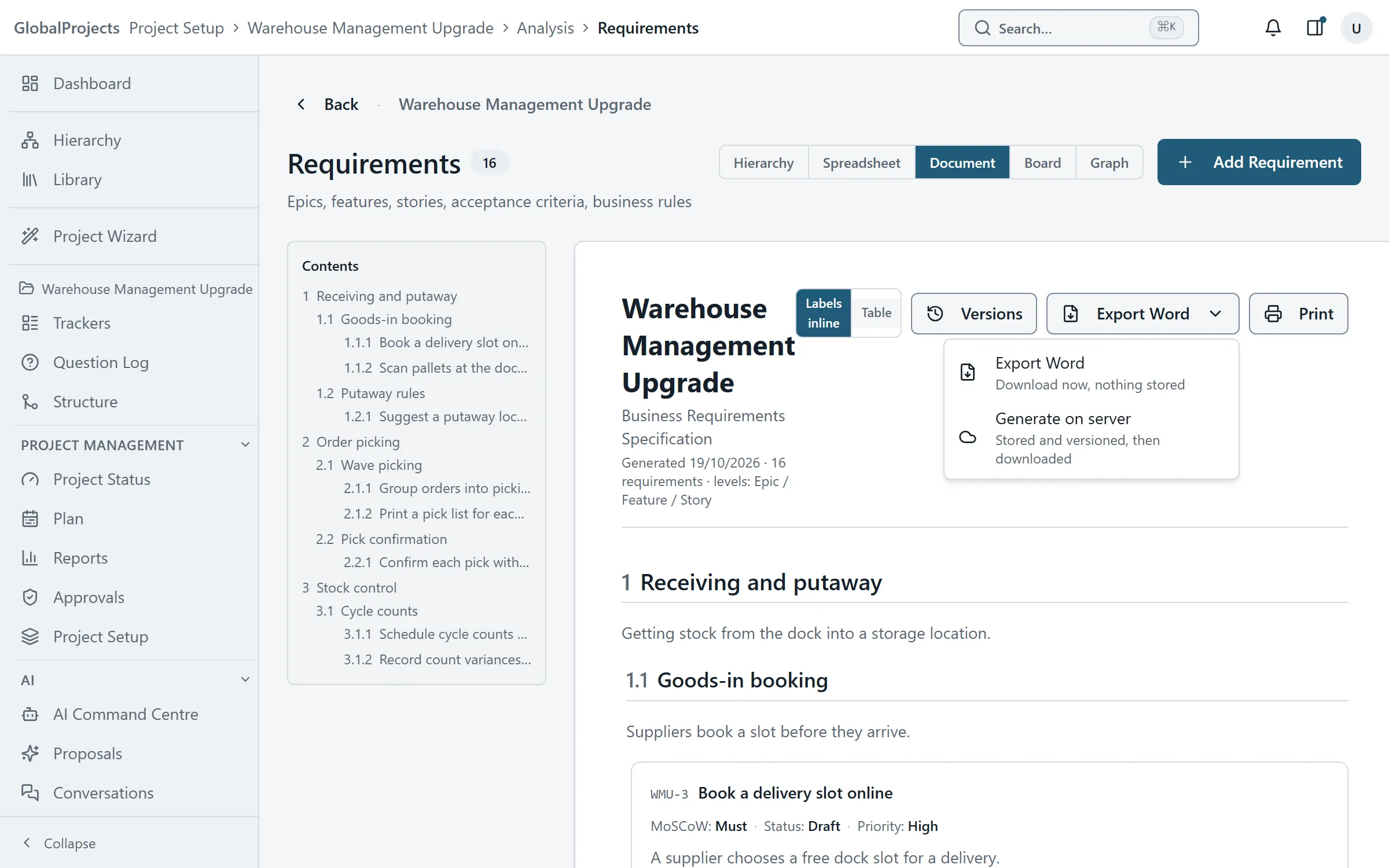
Export the requirements to Word
- Open the project's Requirements and choose Document.
- Open Export Word ▾ and choose Export Word. It downloads straight away and nothing is stored.
- To keep a numbered, signed version in the project as well, choose Generate on server instead.
What the CSV contains
Every requirement in the project, in tree order, whether its group is open or closed in the spreadsheet. A Key column and an outline Level column (1, 2, 3 and so on) come first, then the spreadsheet’s columns.
Other exports
- The Scope document has the same Export Word menu.
- Every report has Export ▾. See The reports library.
- The Plan has Export, with a CSV of every plan item.
When export is turned off
A project or company can limit exporting to people whose role carries the Data export permission. If yours does, Export CSV and Export Word are greyed out, with a note that it is a policy setting, not a fault.
Company administrators set the default under Admin, Organisation Settings, Data export. A project can change it under Project Setup, on the Status tab, in Who may export project data.
Related articles
- Working in the spreadsheet
The requirements spreadsheet, explained for someone who knows Excel — typing, moving around, adding rows, changing where a row sits, and what is different.
- The signed BRS
Generate a numbered BRS that records who signed what, check that approved text has not changed since, and download any version.
- The reports library
Open a project's reports on screen, narrow them with parameters, export them to Word or a spreadsheet, and find every file the project has produced.