Paste requirements from Excel
Copy a range from Excel, map its columns, check a preview and create the requirements in one go — nothing is created until you confirm.
Updated 19 October 2026
If your requirements already live in a spreadsheet, you do not need to retype them. Copy the rows in Excel, paste them into the project, tell it which column is which, and check the preview. Nothing is created until you have reviewed it.
Paste and map the columns
- In Excel, select the rows you want, including the header row if there is one, and copy them.
- In your project, open Requirements and choose the Hierarchy or Spreadsheet view.
- Choose Import. A window called Import from Excel opens.
- Click in the box and press Ctrl+V. The window moves on by itself once it has read the paste.
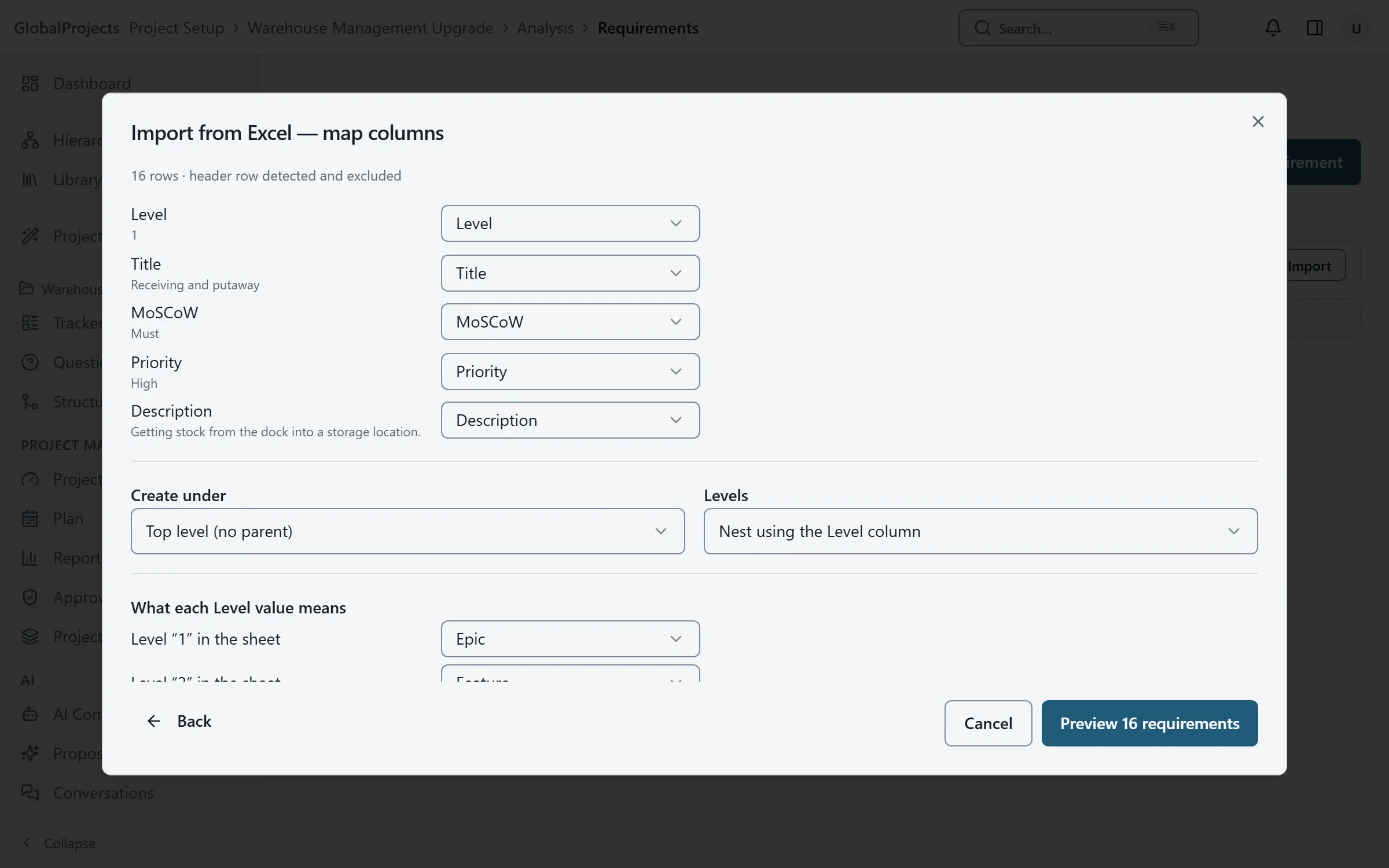
- Check what each column holds. A column headed with a field's name, such as Title or Level, is matched for you. Change any that are wrong: Title, Description, Level, Priority, MoSCoW, Notes, Acceptance Criteria or Ignore. Exactly one column must be Title.
- Under Create under, choose where the new requirements go, or leave Top level (no parent).
Nest by level, check and create
- Under Levels, choose Nest using the Level column if your sheet has a level column, or Flat — every row a sibling.
- If you nest, tell it what each value in your sheet means, for example that "1" is an epic.
- Choose Preview to see every row that will be created.
- Read the notes on any row. Rows with an error are struck through and will not be created.
- Choose Create. You see how many requirements were imported.
What the preview tells you
The summary line says how many requirements will be created, how many rows are excluded and how many carry a note. A row is excluded when its title is empty or its level cannot be read. A row with a note is still created, for example when a priority it does not recognise is left unset.
If the import stops part way
Large pastes are sent in batches. If one batch is refused, you are told which rows were imported and where it stopped. The rows before that point are in the project; paste the rest again.
Good to know
- A header row is spotted and left out automatically. The window tells you whether it found one.
- Pasting into the spreadsheet’s cells works for a few values. For new rows, use Import.
Related articles
- Working in the spreadsheet
The requirements spreadsheet, explained for someone who knows Excel — typing, moving around, adding rows, changing where a row sits, and what is different.
- The requirements hierarchy
How requirements sit inside each other, how to add, move and delete them in the Hierarchy view, and the five ways to look at the same requirements.