Project stages and gates
See which stage a project is in and what it needs before it can move on, advance it, move it back, or reject a stage with a recorded reason.
Updated 19 October 2026
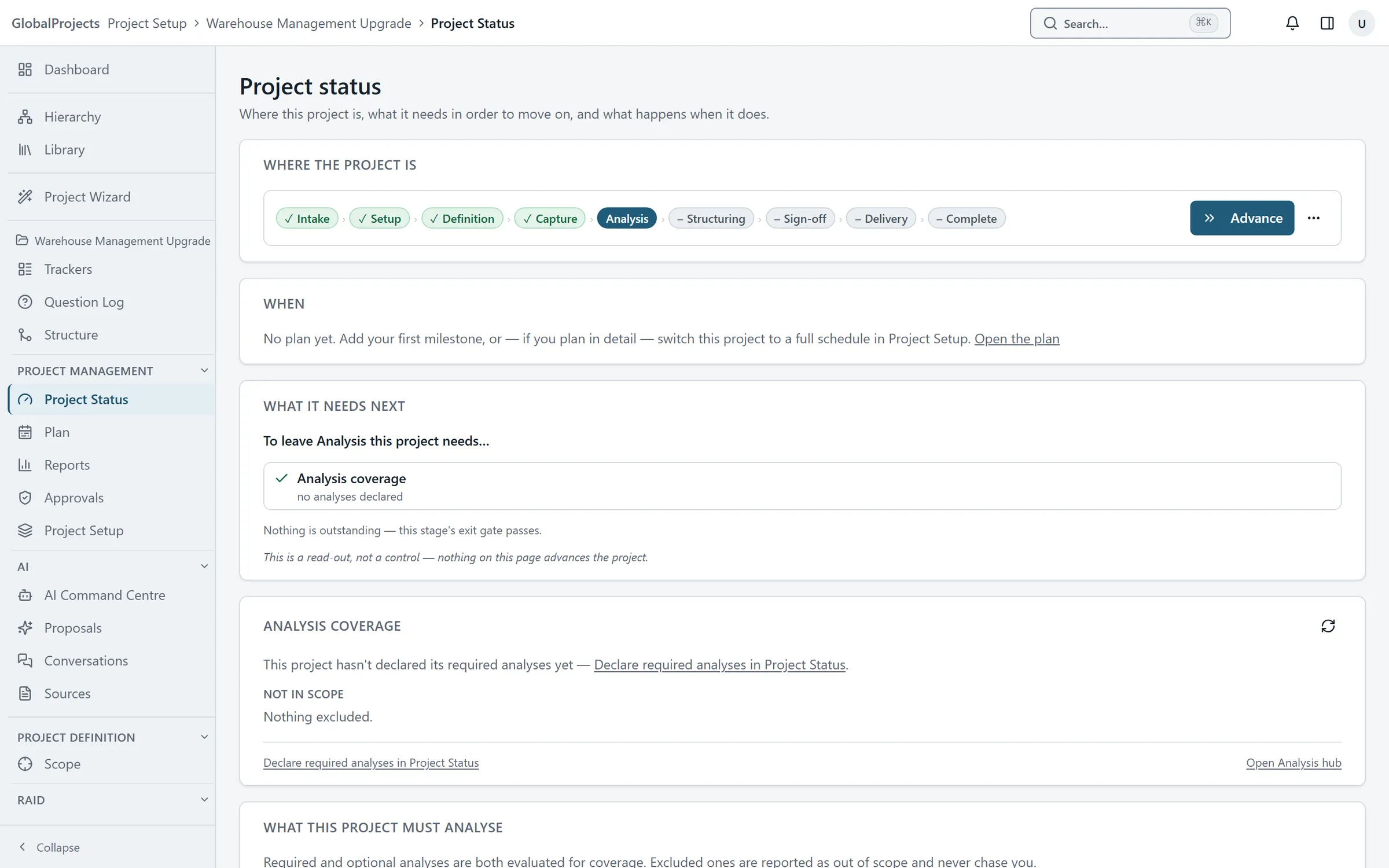
A project moves through stages, shown as a bar of steps on the project dashboard and on Project Status. Each stage can have an exit gate: a short list of checks, such as all sign-offs resolved or no open blocking risks, that is checked when you try to move on.
A gate is either advisory — you can move on while it fails, and the failure is recorded — or blocking, where the checks must pass first.
See what the project needs next
- Open the project and choose Project Status in the left navigation.
- Under Where the project is, see the current stage.
- Under What it needs next, read each check. A tick means it passes; a cross means it does not.
- Choose View on a failing check to see the items behind it.
Advance to the next stage
- On the project dashboard or Project Status, choose Advance on the stage bar.
- Read the checklist in the window. It is checked again as you advance.
- Choose Advance to the next stage. If an advisory gate fails, the button reads Advance anyway.
- If a blocking gate fails, resolve the failing checks first, or ask someone allowed to override it.
Move back or reject a stage
- On the stage bar, open the … menu.
- Choose Move back…, pick the earlier stage, type why, and choose Move back.
- Or choose Reject stage…, type why, and choose Reject stage. Every pending sign-off for the stage is rejected with your reason, and the requester is told.
The checks you may see
- Analysis coverage — every analysis the project declared has content.
- Sign-offs resolved — nothing is still waiting for a signature.
- Mandatory fields — requirements carry the fields the stage needs.
- Open blockers — no open risks or issues beyond the limit.
- Archive criteria — every item is in a final status.
Overriding a blocking gate
Someone with the manage project settings permission sees Override… when a blocking gate fails. They type a reason and choose Override and advance. The reason and a snapshot of the failed checks are recorded permanently on the project’s timeline.
Who can do what
- Advance and Move back… need the advance workflow permission.
- Reject stage… needs approve reject, and is offered only on a stage with a blocking gate.
- Project Status is a read-out for everyone on the project; nothing on that page moves the project by itself.
Related articles
- Request and give sign-off
Ask a named person to sign off a requirement or a whole branch, approve or reject what is waiting for you, and see what happens when approved work changes.
- Statuses and transitions
Set a project's own statuses, choose which moves between them are allowed and who may make them, and decide what a sign-off does to an item's status.
- The reports library
Open a project's reports on screen, narrow them with parameters, export them to Word or a spreadsheet, and find every file the project has produced.