Scope lines and the scope document
Record what is in and out of scope, turn an in-scope line into requirements, and print or export the scope document.
Updated 19 October 2026
Scope is a list of short lines: what this project will do, and what it will not. In-scope lines feed your requirements; out-of-scope lines are kept so nobody has to ask twice.
If Scope is not in your left navigation, the module is not switched on for the project. See the first task below.
Switch scope on for a project
- Open your project and choose Project Setup in the left navigation.
- Choose the Modules tab.
- Turn on Scope.
- Choose Save. Scope now appears in the left navigation under Project Definition.
Add scope lines
- Choose Scope in the left navigation. Make sure Lines is selected at the top.
- Under In Scope, choose Add In Scope line. For something excluded, use Add Out of Scope line.
- Type the line, pick Functional or System, and press Enter. The box stays open for the next line.
- Press Esc when you have finished.
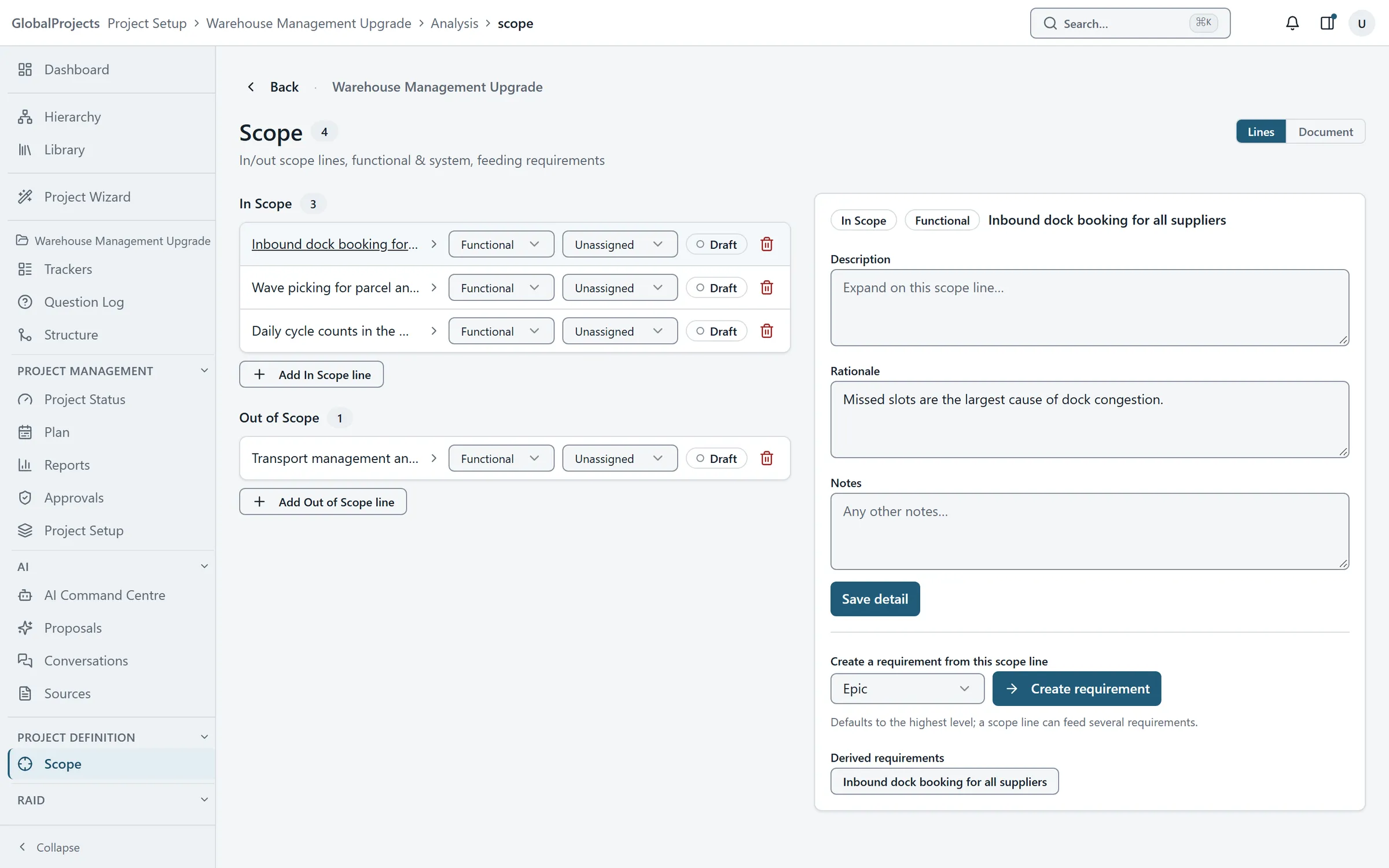
Create a requirement from a scope line
- Click an in-scope line to open its detail on the right.
- Add a Description, a Rationale and Notes if you want them, then choose Save detail.
- Under Create a requirement from this scope line, choose the level.
- Choose Create requirement. It appears under Derived requirements and is linked to the line.
The scope document
Choose Document at the top of the Scope page to see the lines as a numbered Scope Document, with 1 In Scope and 2 Out of Scope. Each line shows the requirements created from it under Related requirements.
Choose Print, or open Export Word and choose Export Word to download it, or Generate on server to keep a numbered version in the project.
Good to know
- A scope line can feed several requirements. Choose Create requirement again with a different level.
- Out-of-scope lines are recorded for the trace and are not turned into requirements.
- You can also link an existing requirement to a scope line from the requirement’s Traceability section. Such a link shows in the side panel, but not under Derived requirements.
- Switching the module on needs the configure analysis framework permission on the project.
Related articles
- Link items and follow the trace
Link a requirement to a risk, a scope line or another requirement by searching for it, and see an item's parents, children and links in the side panel.
- The requirements hierarchy
How requirements sit inside each other, how to add, move and delete them in the Hierarchy view, and the five ways to look at the same requirements.
- The signed BRS
Generate a numbered BRS that records who signed what, check that approved text has not changed since, and download any version.