The Question Log
Raise open questions for the project or against any item, record the answer and who gave it, and let an answer propose the requirements it unblocks.
Updated 19 October 2026
The Question Log is where open questions live until somebody answers them. A question can be about the whole project, or linked to the requirements, risks or scope lines it affects.
Raise a question
- Open your project. In the left navigation, choose Question Log.
- Choose New Question.
- Type the Question. Add Details, the Raiser and the Target (who answers) if you know them.
- Choose an Owner and a Priority.
- Choose Create Question.
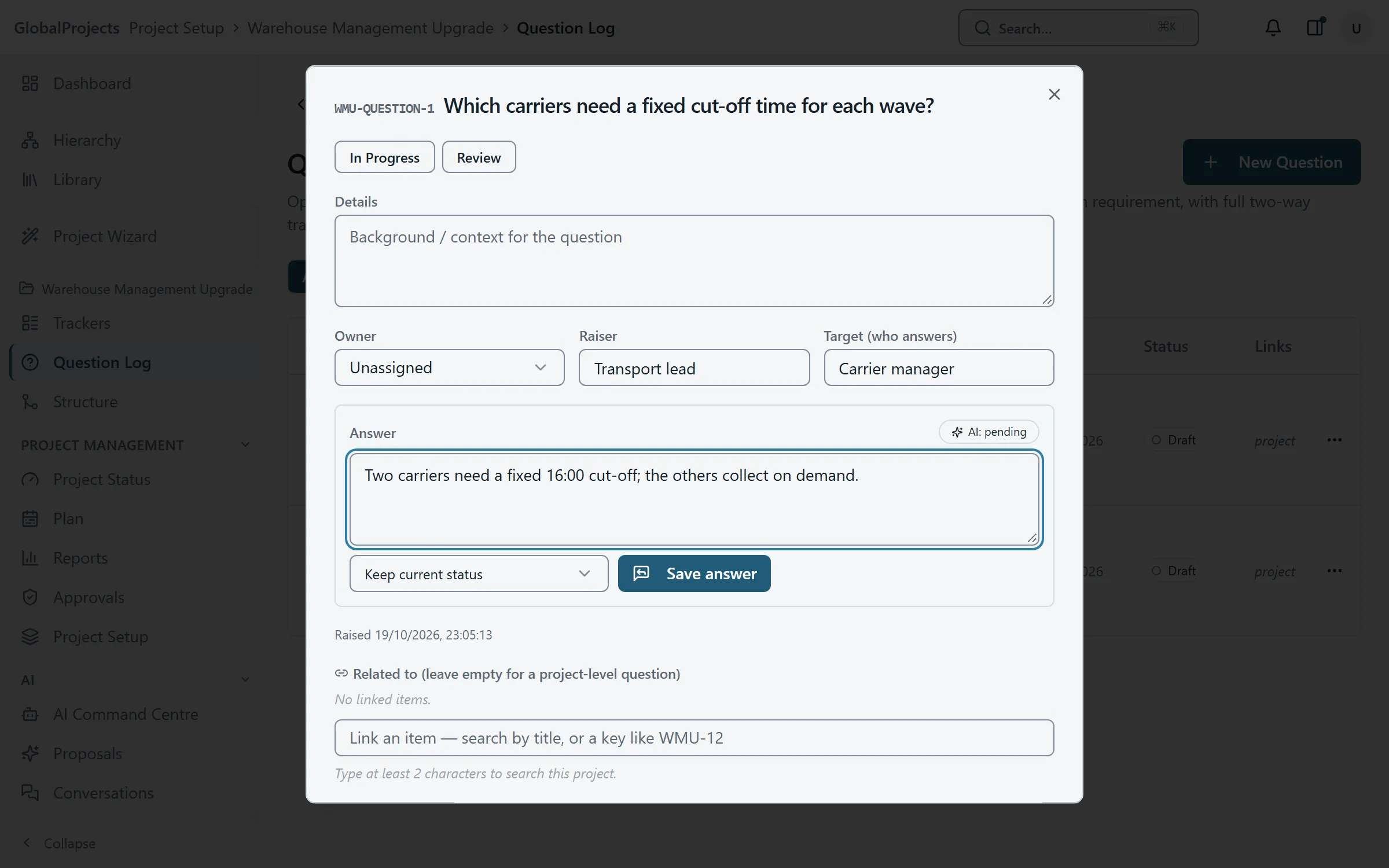
Record an answer
- Click the question to open it.
- Under Answer, type what was decided and why.
- To close the question at the same time, change Keep current status to and move to the status you want, for example and move to Done.
- Choose Save answer. The question now shows who answered it and when.
Link a question to the items it affects
- Open the question.
- Under Related to, search for an item and choose it.
- Leave it empty if the question is about the project as a whole.
Raising a question from the item you are on
Every requirement and tracker item has a Raise a question button under Traceability. Type the question and press Enter: it is added to the Question Log and linked to that item.
Seeing only some questions
Use the switch above the list: All, Project-level (questions with no links) or Linked.
When an answer proposes requirements
If AI is switched on for your project, saving an answer can start a check of what the answer unblocks. The badge beside Answer shows how far it has got, for example AI: proposals to review. Anything it suggests waits in Proposals for you to accept or discard; nothing is added on its own. See Review what the AI proposes.
Good to know
- Saving an answer does not close the question unless you choose a status to move to.
- A question counts as open until it reaches a final status, which is Done unless your project has set up its own statuses.
- Delete in the question’s window removes it straight away.
Related articles
- Link items and follow the trace
Link a requirement to a risk, a scope line or another requirement by searching for it, and see an item's parents, children and links in the side panel.
- Review what the AI proposes
What "AI proposes, you decide" means in practice — read each proposal and its evidence, edit it or ask the AI to change it, then accept or discard.
- Trackers — risks, issues, assumptions, dependencies, decisions and ideas
Keep risks, issues, assumptions, dependencies, decisions and ideas beside your requirements, add them quickly and link them to what they affect.