The document view
Read your requirements as a numbered business requirements specification, switch how fields are laid out, and print it or take it into Word.
Updated 19 October 2026
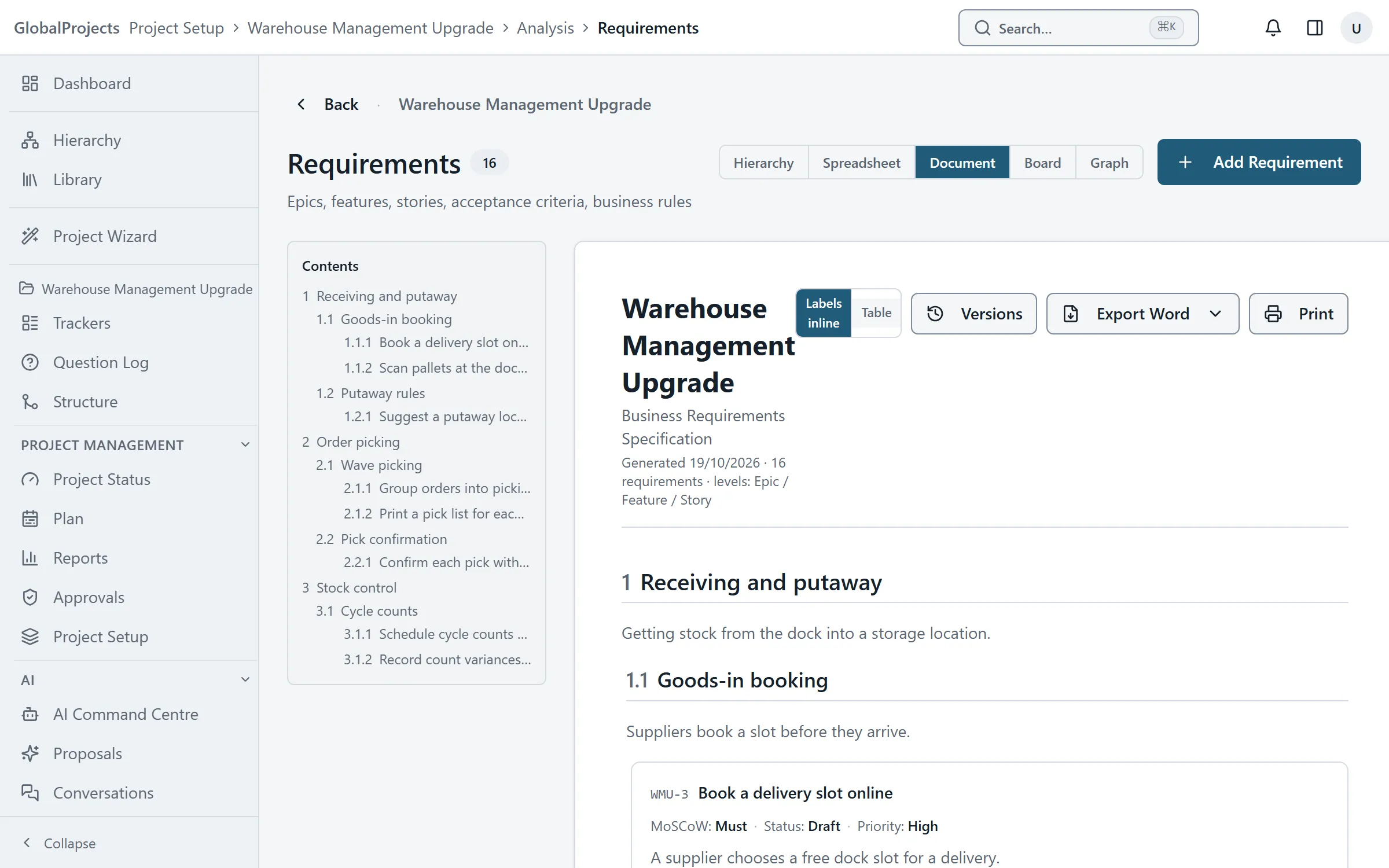
The Document view shows the project's requirements as a business requirements specification. It is built from the same requirements as every other view, so it is always up to date. There is nothing to copy across.
Read the document
- Open your project and choose Requirements in the left navigation.
- Choose Document at the top of the page.
- Use Contents on the left to jump to a numbered section.
- Choose Labels inline to show each requirement's fields as one labelled line, or Table to show them as a small table.
- Click any requirement to open it and edit it.
Print it or take it into Word
- In the Document view, choose Print to print it, or to save it as a PDF from your browser.
- Or open Export Word ▾ and choose Export Word to download a Word file straight away. Nothing is stored.
- To keep a numbered, signed version in the project, choose Generate on server instead.
What is in the document
At the top you see the project name, Business Requirements Specification, and a badge with the version and its state: Draft, Issued or Approved. Each epic and feature becomes a numbered heading. Each requirement shows its ID, title, MoSCoW, status, priority, owner, description, user story, acceptance criteria and your custom fields.
Non-functional, data and integration requirements follow in their own sections.
When it is empty
A new project shows “No requirements yet — the document builds itself as requirements are added.” Add requirements in any view and they appear here.
In Word
The Word file has a cover page, a document control table, a table of contents and page numbers. To refresh the page numbers in the contents, right-click the table in Word and choose Update Field.
Export Word keeps nothing in the project and carries no sign-off. For a version that records who signed what, see The signed BRS.
Related articles
- The signed BRS
Generate a numbered BRS that records who signed what, check that approved text has not changed since, and download any version.
- Export to Word and Excel
Download your requirements as a CSV that Excel opens, or as a Word document, and see who your project lets export.
- The requirements hierarchy
How requirements sit inside each other, how to add, move and delete them in the Hierarchy view, and the five ways to look at the same requirements.