Statuses and transitions
Set a project's own statuses, choose which moves between them are allowed and who may make them, and decide what a sign-off does to an item's status.
Updated 19 October 2026
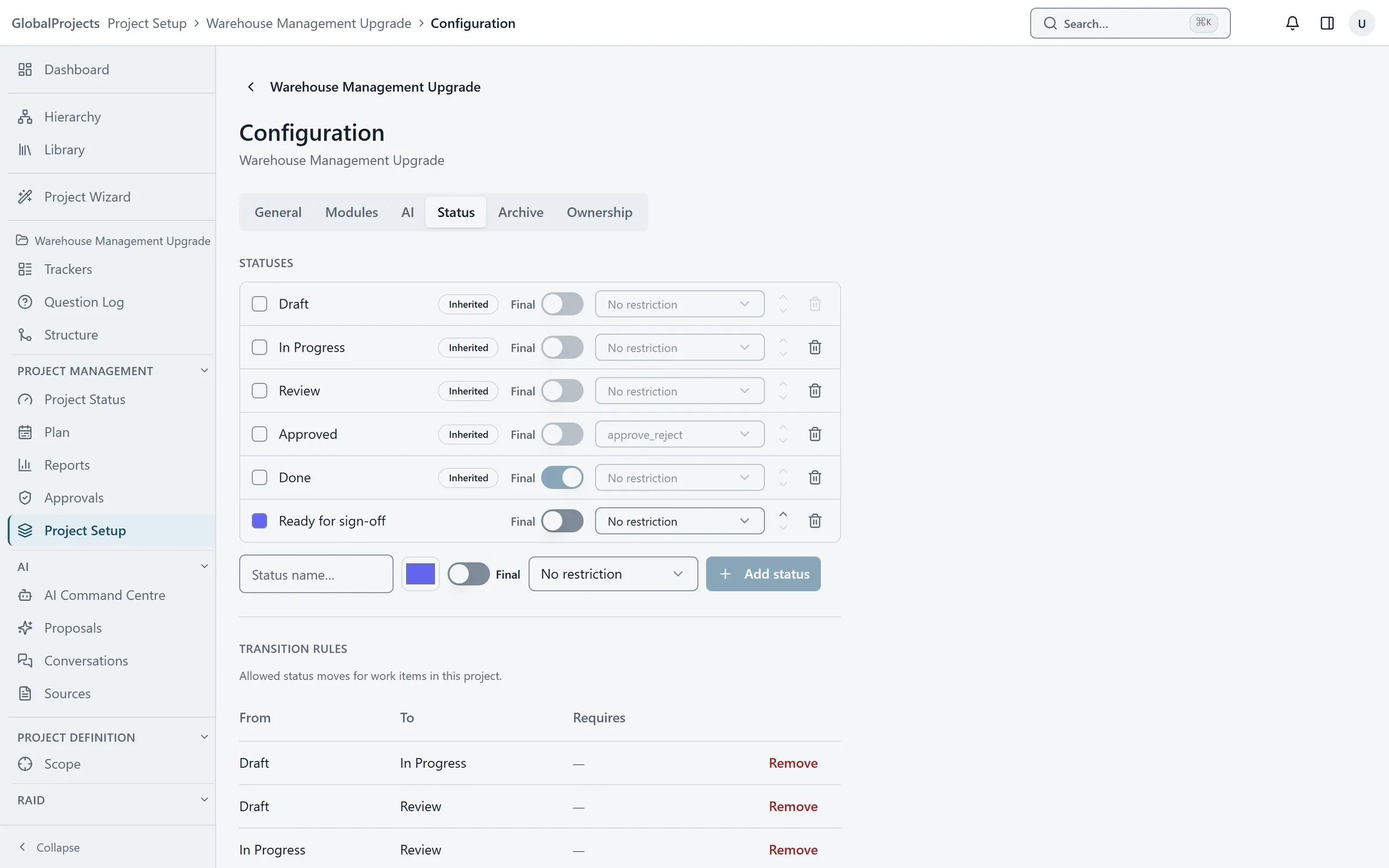
Every item has a status. Out of the box the statuses are Draft, In Progress, Review, Approved and Done, and only Done is final. A project can add its own statuses and decide which moves between them are allowed. The status buttons people see on an item only ever offer the allowed moves.
Add a status
- Open the project and choose Project Setup in the left navigation. Choose the Status tab.
- Under Statuses, type a name in Status name… and pick a colour.
- Turn on Final if items in this status are finished.
- To limit who can move items into it, choose a permission instead of No restriction.
- Choose Add status. Use the arrows to put the statuses in order.
Allow a move between two statuses
- On the same tab, find Transition rules.
- Choose the From status and the To status.
- Choose a permission if only some people may make this move.
- Choose Add. To stop a move being allowed, choose Remove on its row.
Remove a status
- Choose the bin icon on the status, Remove status.
- Under Reassign items to, choose the status that items in it should move to.
- Choose Remove & reassign. You see how many items were reassigned.
What a sign-off does to the status
Under Approval resolution on the same tab:
- When approved, move item to — Approved unless you choose another status.
- When rejected, move item to — Draft unless you choose another.
- Editing an approved item — Allow, flag for re-approval (the default) lets the edit happen and marks the sign-off as no longer covering the item. The other choice locks approved items for anyone without the approve permission.
If no transition leads to the status you choose, you are warned that approvals will resolve but items will not move. Add the transition first.
Who may export
Who may export project data, also on this tab, decides who can download the project’s requirements as CSV or Word and its generated files. See Export to Word and Excel.
Good to know
- Statuses marked Inherited come from your company and cannot be edited here.
- The default status cannot be removed.
- Changing statuses needs the manage project settings permission.
Related articles
- Request and give sign-off
Ask a named person to sign off a requirement or a whole branch, approve or reject what is waiting for you, and see what happens when approved work changes.
- Project stages and gates
See which stage a project is in and what it needs before it can move on, advance it, move it back, or reject a stage with a recorded reason.
- The requirements hierarchy
How requirements sit inside each other, how to add, move and delete them in the Hierarchy view, and the five ways to look at the same requirements.