The signed BRS
Generate a numbered BRS that records who signed what, check that approved text has not changed since, and download any version.
Updated 19 October 2026
A signed BRS is a Word document generated from your requirements and stored in the project as a numbered version. It carries a sign-off table: who approved each requirement or branch, when, and whether the approved text has changed since. A matching fingerprint proves the text is what was approved.
Generate a version
- Open the project's Requirements and choose Document.
- Open Export Word ▾ and choose Generate on server.
- Wait for the message that the BRS version has been generated. It downloads, and is stored as a Draft with the next version number.
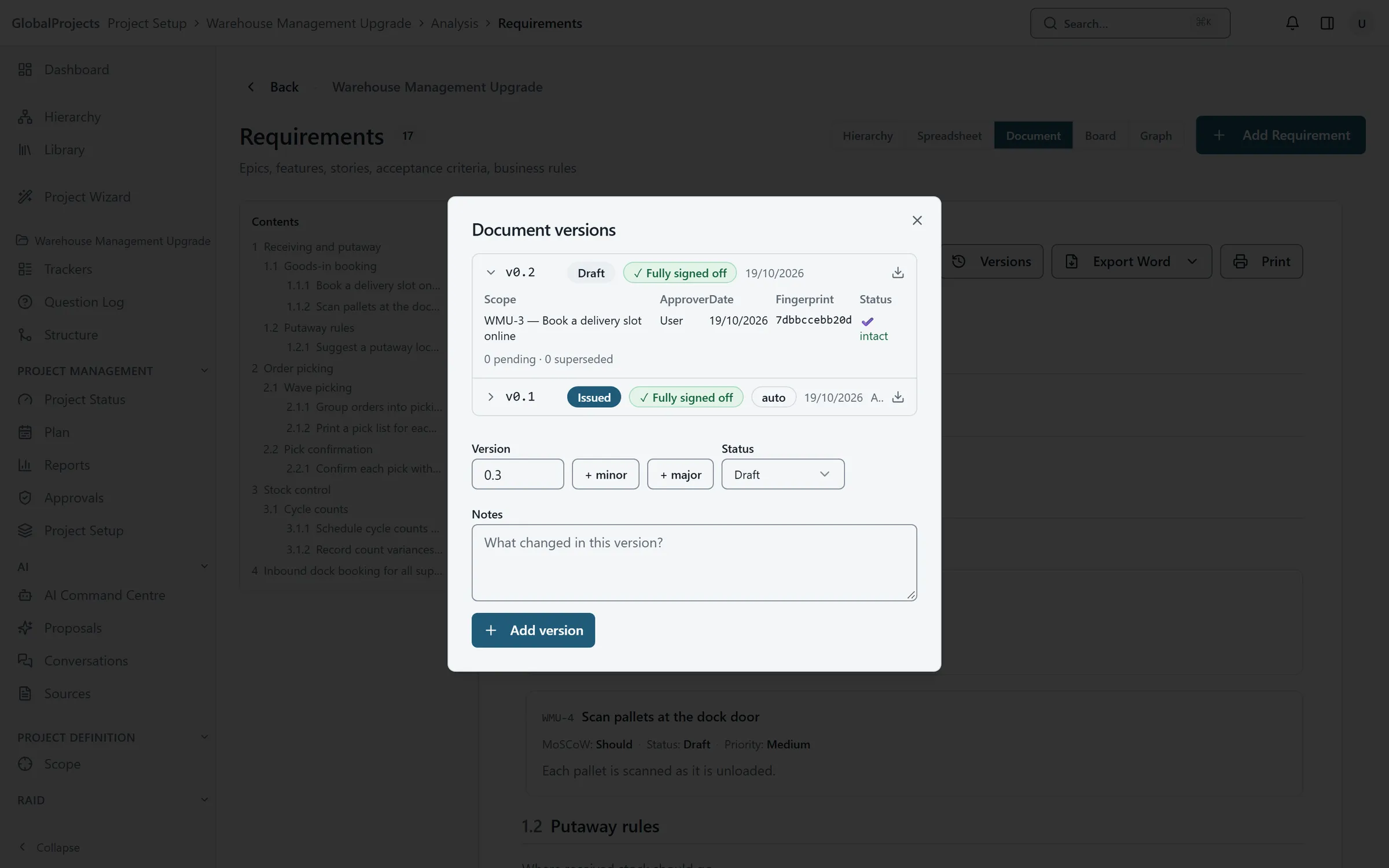
Check sign-off and download a version
- In the Document view, choose Versions.
- Read each version's badge, Fully signed off, Partially signed off or Not signed off.
- Open a version to see its sign-off table. ✔ intact means the approved text is unchanged; ⚠ content changed since approval means it has been edited since.
- Choose the download icon to download that version.
Issued automatically when sign-off completes
When the last pending sign-off in a project is resolved, an Issued BRS is generated automatically. It is marked auto in the versions list and appears under Reports with System as its author.
What is in the document
A cover page, a document control table with the Sign-off state, a Sign-off table, and every requirement numbered and structured. Each requirement whose approval is intact ends with the line Approved — followed by the approver and the date.
Export Word is different
Export Word in the same menu downloads the document straight away and stores nothing. It has no sign-off table. Use Generate on server whenever you need the signed record.
Adding a version by hand
In Versions you can record a version yourself: choose + minor or + major, pick the Status, add Notes, and choose Add version. A version added by hand has no file.
Who can generate
Generate on server needs the generate reports permission. The Business Analyst, Project Owner, Project Manager and Product Owner roles have it.
Related articles
- Request and give sign-off
Ask a named person to sign off a requirement or a whole branch, approve or reject what is waiting for you, and see what happens when approved work changes.
- The document view
Read your requirements as a numbered business requirements specification, switch how fields are laid out, and print it or take it into Word.
- The reports library
Open a project's reports on screen, narrow them with parameters, export them to Word or a spreadsheet, and find every file the project has produced.