The history of an item
See every change to a requirement or tracker item — what changed, from what to what, who made it and when — including the changes the AI made.
Updated 19 October 2026
Every change to an item is recorded: the field, the value before and after, who made the change, and when. Changes that came from accepting an AI proposal are marked, so you can always tell a person's edit from the AI's.
Read an item's history
- Open the requirement, risk or question.
- Scroll to the bottom and open History. The number beside it is how many changes there are.
- Read the entries, newest first, grouped under Today, Yesterday and earlier dates.
- Point at a time such as 3h ago to see the exact date and time.
- Choose Show more to load older changes.
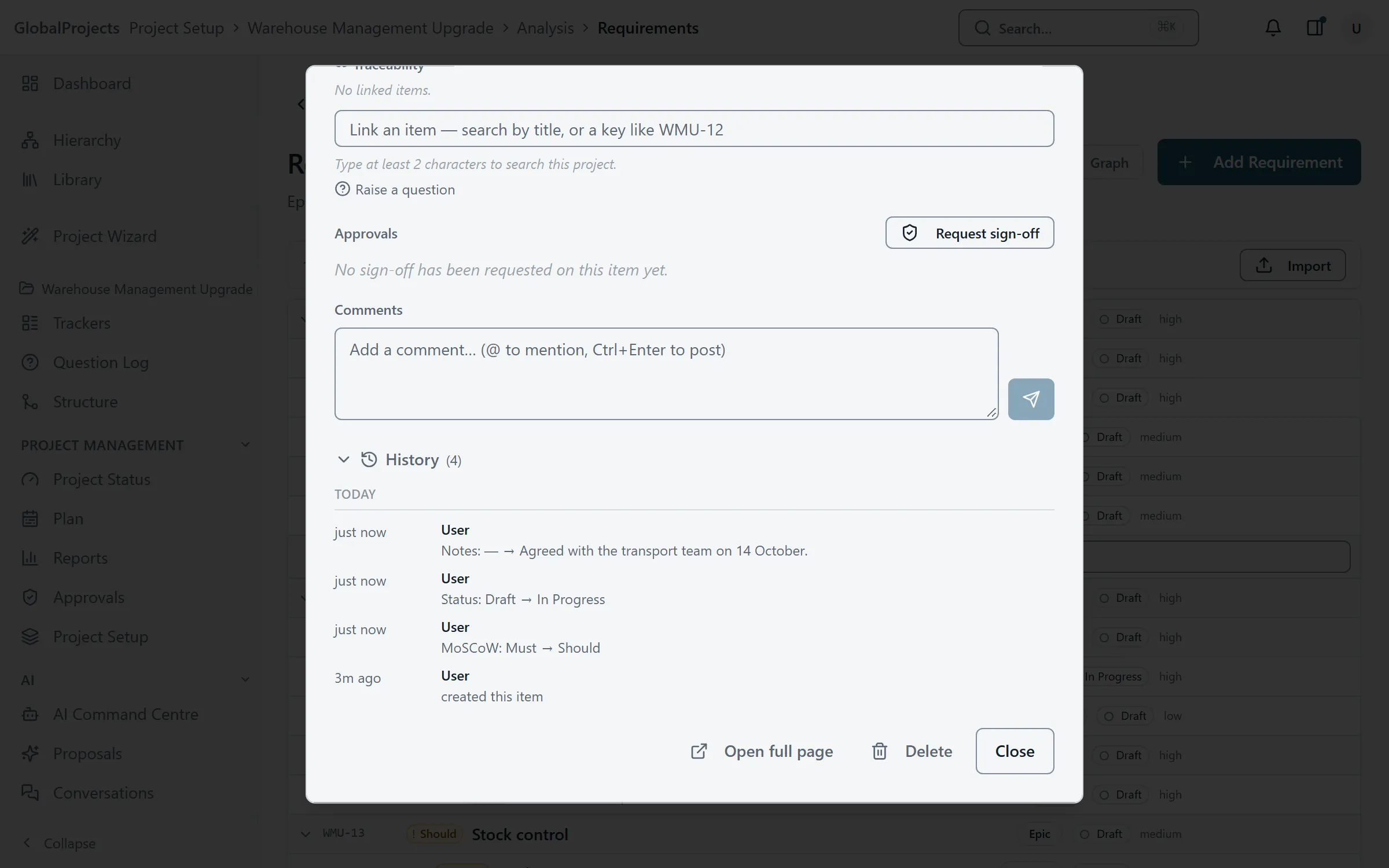
What an entry shows
- Who made the change: a person’s name, System for an automatic change, or Unknown user for someone no longer in the company. An AI badge marks a change that came from an AI proposal.
- What changed, as the field name followed by the old value, an arrow, and the new value. A dash means the field was empty.
- Events such as “created this item”, “added a link”, “removed a link” and “added a comment”.
Long values are shortened; choose Show full value to read all of it.
Good to know
- Nobody can edit an item’s history.
- Sign-offs keep their own record under Approvals on the same item. See Request and give sign-off.
Related articles
- Request and give sign-off
Ask a named person to sign off a requirement or a whole branch, approve or reject what is waiting for you, and see what happens when approved work changes.
- Review what the AI proposes
What "AI proposes, you decide" means in practice — read each proposal and its evidence, edit it or ask the AI to change it, then accept or discard.
- Link items and follow the trace
Link a requirement to a risk, a scope line or another requirement by searching for it, and see an item's parents, children and links in the side panel.