Create your first project
Create a project in five short steps — its name and key, how it is delivered, its modules, its requirement categories and how long it keeps sources.
Updated 6 November 2026
A project is where the work happens: its requirements, scope, risks, questions, plan and sources all live inside it. Creating one takes five short steps, and you can change every choice later.
Name the project and choose its key
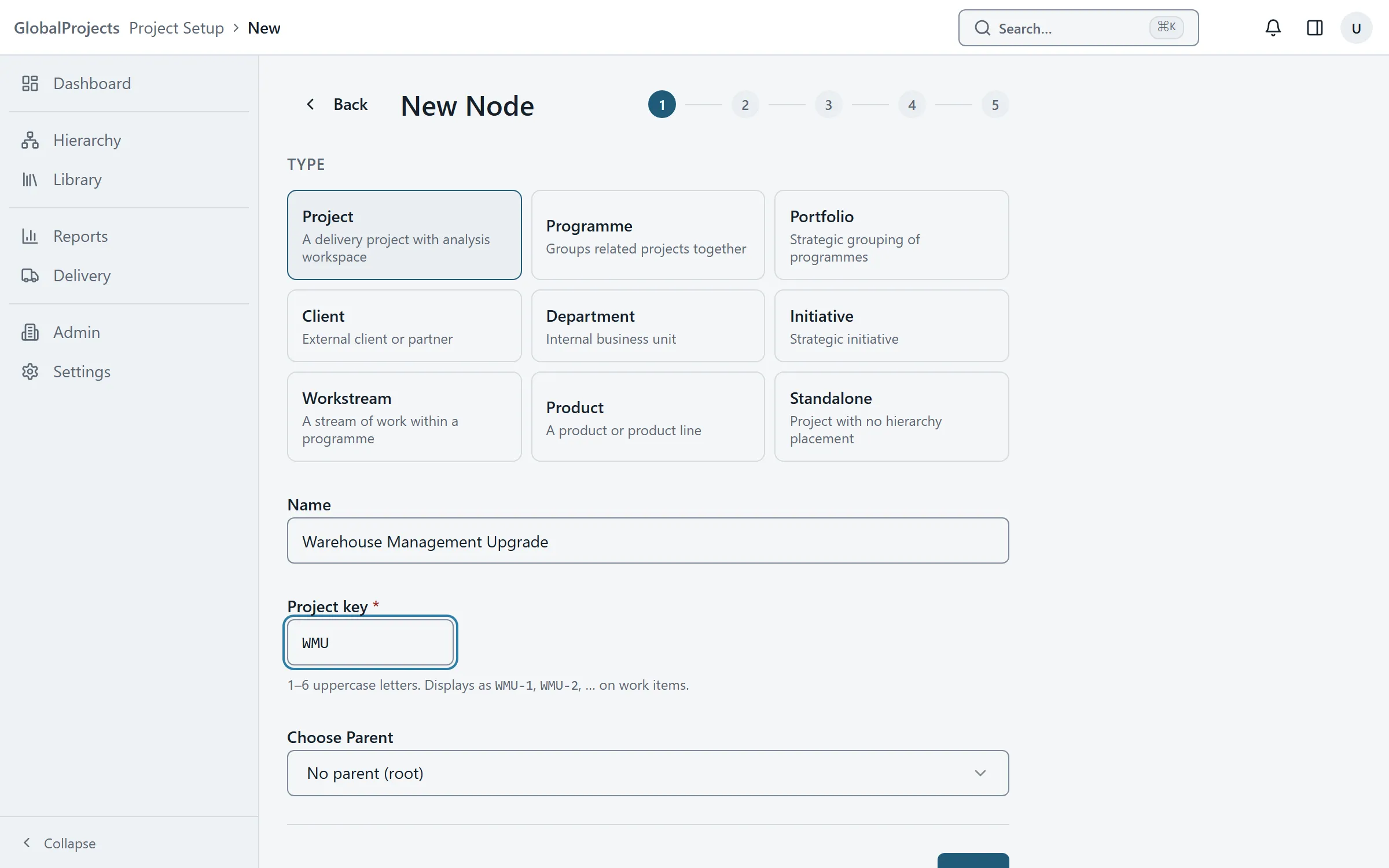
- On the Dashboard, choose New Project. The page that opens is headed New Node.
- Under Type, choose Project.
- Type the project's Name.
- Check the Project key. It is suggested from the name: up to six capital letters, such as WMS. Every item in the project is numbered with it, for example WMS-12.
- If the project belongs to a programme or portfolio, pick it under Choose Parent. Otherwise leave it as it is.
- Choose Next.
Choose how it is delivered and what it needs
- Under Delivery methodology, choose Agile, Waterfall or Hybrid, then Next.
- Under Initial modules, switch on the areas the project will use. Requirements and Risk Register are on already. Choose Next.
- Under Requirement categories, check the lists for non-functional, data and integration requirements. Add, rename or remove categories, or keep the defaults. Choose Next.
- Under Source retention, keep Use the company policy, or choose Keep sources for less and type a number of days.
- Choose Create Project.
What happens next
You land on the new project and you are its Project Owner. When you next open the project, the Project Wizard opens to help you set it up from your source material. You can skip it and come back later. See The Project Wizard.
Your projects on the Dashboard
Before you have a project, the Dashboard shows a card headed Get started in three steps: create a project, add what you already have, then run the Project Wizard. Once you have projects, the Dashboard lists them with their stage, their numbers of requirements, RAID items and questions, and, for each one, what to do next, such as continuing the wizard where you left off or answering open questions. The hierarchy of portfolios and programmes sits beside the list. Open or close it with its arrow, and the Dashboard remembers your choice.
Choosing a good key
The key is part of every item’s number, so pick something short that people will recognise. It must be unique in your organisation. If it is taken, you see “A project with that key already exists in this organisation.”
Who can create a project
You need a lead role held across the company: Project Owner, Project Manager, Business Analyst, SME / Acting BA or Product Owner, or a company administrator. If you do not have one, you see “You have not been added to a project yet. Ask a project owner or your administrator.” on the Dashboard instead of New Project.
Other things you can create
The same page creates programmes, portfolios and other groupings. Choose a different Type in the first step; those are created in one step. Grouping projects needs a company administrator.
Changing your choices later
Open the project and choose Project Setup in the left navigation. The requirement categories are on the General tab, the modules on Modules, and source retention on AI.
Related articles
- The Project Wizard
Set a new project up from its source material in ten guided steps — add sources, run each step, review what it proposes, accept or skip.
- Custom fields for each level
Name your project's requirement levels and give each level its own fields — from Project Setup, or by adding a column in the spreadsheet.
- How long sources are kept
Set how long your company keeps meeting notes, transcripts and uploads, place a legal hold, and find, hold or delete sources across every project.