Add sources — notes, transcripts and documents
Give the project the material the AI reads — paste a transcript or upload a document — then view it, hold it or delete it.
Updated 19 October 2026
A source is something the AI can read on your behalf: a meeting transcript, an email thread, workshop notes, or a document. Adding a source changes nothing in the project by itself. It is the material you later ask the AI to work from.
Paste a transcript or notes
- Open your project. In the left navigation, under AI, choose Sources. The Project sources window opens.
- Choose Paste text.
- Give it a Title, for example "Warehouse kickoff call, 3 Sept".
- Choose the type, Transcript or Notes.
- Paste the text into the box as it is. Nothing is tidied up on the way in.
- Choose Save source. You see "Saved" with its title, and the source joins the list below.
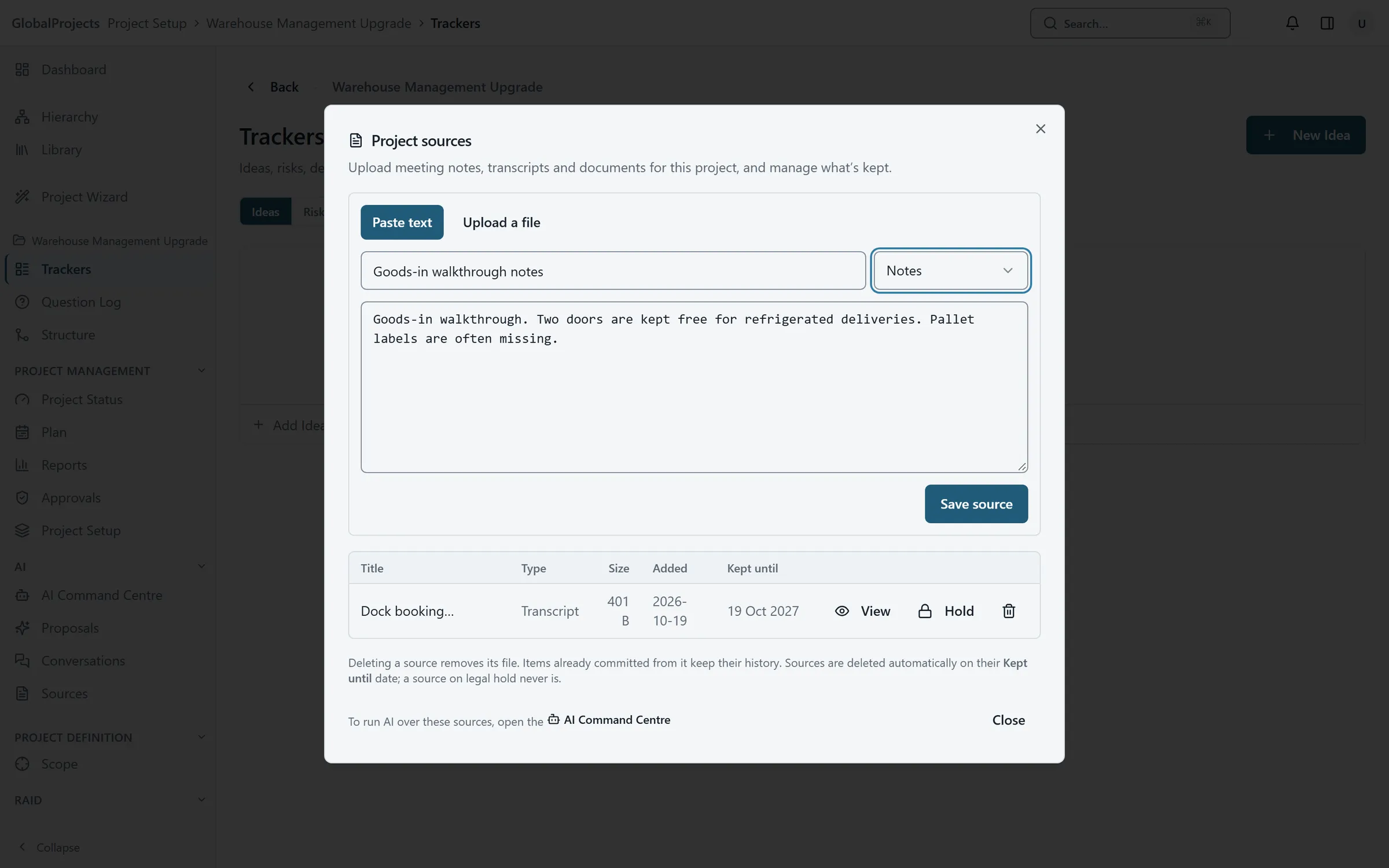
Upload a document
- In Project sources, choose Upload a file.
- Drop the file onto the box, or choose Choose a file.
- Check the Title. It is filled in from the file name.
- Choose Save source.
See what the AI will read
- In the list of sources, choose View on a source.
- Read the text. This is exactly what the AI reads, so a scanned page with no text in it shows nothing here.
- Choose ← Back to return to the list.
Files you can upload
Word (.docx), PDF, plain text (.txt), Markdown (.md), CSV and JSON files, up to about 5 MB each. A larger file is refused with a message saying how big it is; split it, or paste the part you need.
A scanned PDF that is only a picture of the page has no text to read, and is refused with “No text could be read from the file”.
The same document twice
If you upload a document that is already in the project, you see “This document is already uploaded as” followed by its title. Choose Use the existing source to jump to it in the list.
Keeping and deleting
The Kept until column shows when a source will be deleted under your company’s retention policy. A date shown in amber is less than 14 days away.
- To keep a source beyond that date, choose Hold. It is then never deleted until someone chooses Lift hold. Placing a hold needs the manage project settings permission.
- To delete a source now, choose the bin icon on its row. It is deleted at once, without asking again. Requirements and other items already created from it are kept.
Running the AI
The Project sources window does not run anything. To ask the AI to work from your sources, open the AI Command Centre — see Run the AI from the AI Command Centre.
Related articles
- Run the AI from the AI Command Centre
Choose what you want the AI to do, pick the sources or requirements it reads, run it, and follow its progress in Activity.
- Review what the AI proposes
What "AI proposes, you decide" means in practice — read each proposal and its evidence, edit it or ask the AI to change it, then accept or discard.
- How long sources are kept
Set how long your company keeps meeting notes, transcripts and uploads, place a legal hold, and find, hold or delete sources across every project.