Review what the AI proposes
What "AI proposes, you decide" means in practice — read each proposal and its evidence, edit it or ask the AI to change it, then accept or discard.
Updated 19 October 2026
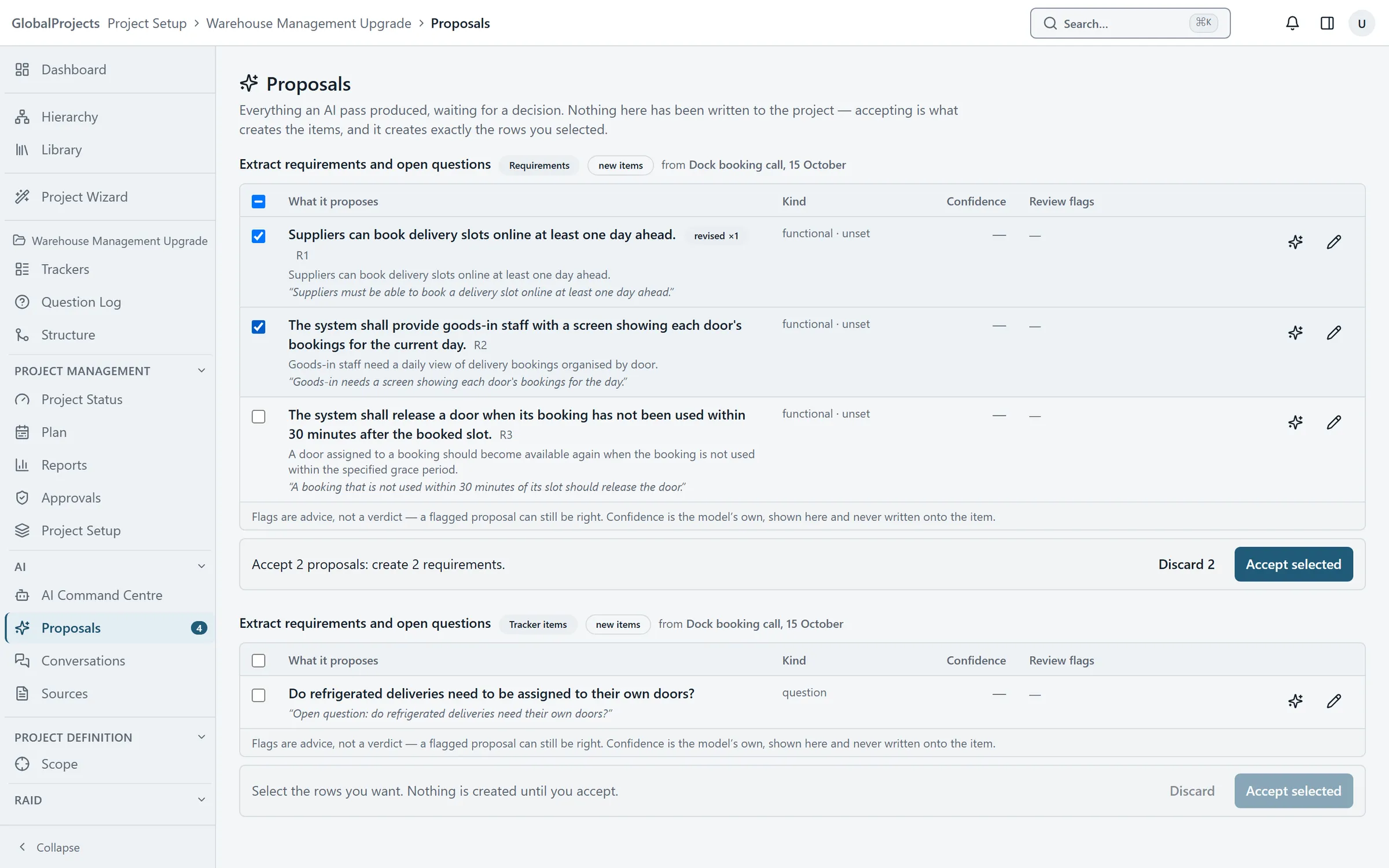
The AI never writes to your project. Everything it produces — new requirements, open questions, risks, suggested moves — waits in Proposals until a person decides. Accepting is what creates the items, and it creates exactly the rows you tick. That is what we mean by AI proposes, you decide.
Accept or discard proposals
- Open your project. In the left navigation, under AI, choose Proposals. The number beside it is how many are waiting.
- Proposals are grouped by the run that made them. Read the group's heading to see what produced it and from which source.
- Read each row. The line in italics under it is the evidence the AI quoted from the source.
- Tick the rows you want to keep. Leave the others unticked.
- Read the sentence above the buttons. It says exactly what accepting will do, for example "Accept 3 proposals: create 3 requirements".
- Choose Accept selected. To throw away rows you do not want, tick them and choose Discard.
Change a proposal before accepting it
- On the row, choose the pencil icon, Change what this proposes before accepting it.
- Edit the text in the Edit before accepting window and choose Save edit. The row is ticked and marked edited.
- Or choose the ✨ icon, Ask the AI to change this. Say what you want changed, for example "Make the acceptance criteria testable", and choose Revise.
- Check the new text, then accept the row as usual.
Where accepted items go
New requirements go into the requirement tree, at the level the run proposed. If you accept a requirement but not the one it was proposed under, it is created at the top level, and the sentence above the buttons warns you first. An accepted answer is written onto its question and closes it.
Flags
Some rows carry a flag, such as “May already be listed as” an existing requirement. A flag is advice, not a verdict: a flagged proposal can still be right. Proposals that look like an existing requirement are left unticked so you choose deliberately.
The confidence figure
The Confidence column is the AI’s own estimate. It is shown to help you decide and is never written onto the item.
Asking the AI to change a requirement you already accepted
Open the requirement and choose ✨ Ask the AI. Say what you want changed and choose Ask. The AI’s suggestion is shown beside the current text. Choose Accept to apply it, or Discard to leave the requirement as it is. In the history it is recorded as an AI change.
If nothing is waiting
You see “Nothing is waiting for review.” Run a command from the AI Command Centre and its proposals appear here.
Related articles
- Run the AI from the AI Command Centre
Choose what you want the AI to do, pick the sources or requirements it reads, run it, and follow its progress in Activity.
- The Question Log
Raise open questions for the project or against any item, record the answer and who gave it, and let an answer propose the requirements it unblocks.
- The history of an item
See every change to a requirement or tracker item — what changed, from what to what, who made it and when — including the changes the AI made.