Automatic runs and spend caps
Set a project's AI spend cap, choose which AI steps run by themselves when a source is uploaded, and see what happens when a cap is reached.
Updated 19 October 2026
By default nothing runs by itself. You can let a project run some AI steps automatically — for example, extract requirements whenever a source is uploaded. Automatic steps always run under a spend cap, and what they produce still waits in Proposals for a person to accept.
Set the project's spend cap
- Open your project and choose Project Setup in the left navigation. Choose the AI tab.
- Under AI spend, see what the project has Spent this period and what is Remaining.
- In Project spend cap (tokens), type a whole number. Leave it blank for no limit; 0 means no spending at all.
- Choose Save.
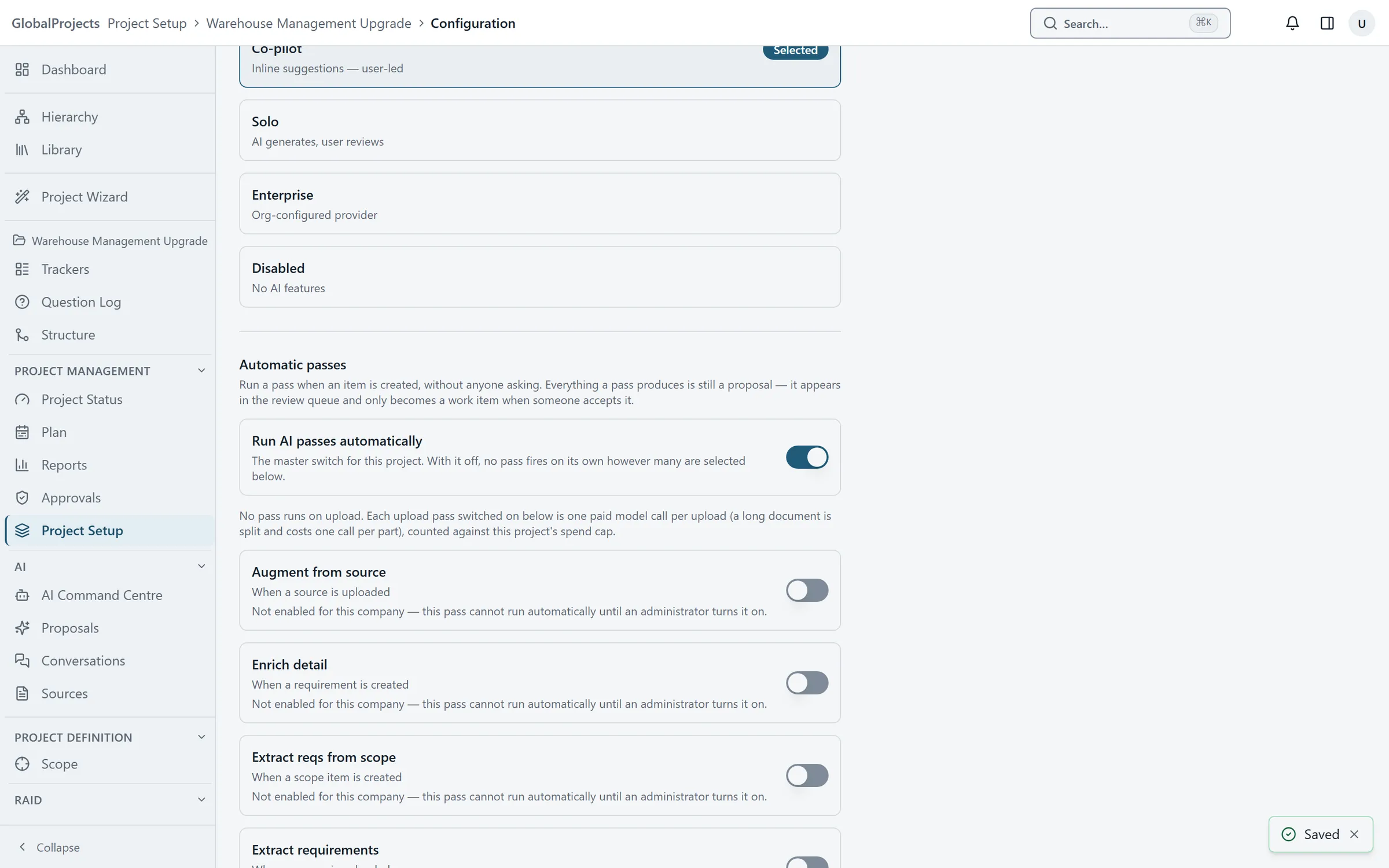
Switch on automatic runs
- On the same AI tab, find Automatic passes.
- Make sure a spend cap is set. Automatic runs cannot be switched on without one.
- Turn on Run AI passes automatically. This is the master switch for the project.
- Turn on each step you want, for example the one marked When a source is uploaded.
- Read the note under the list. It says how many paid AI calls each upload will now make.
- Choose Save.
Seeing what runs by itself
The strip at the top of the AI Command Centre shows Auto-run: off or Auto-run: on with a number. Choose it to see each step and what sets it off. While the Project Wizard is running, upload steps are paused, and the strip says Auto-run: paused by the Project Wizard.
When a step cannot be switched on
A step that says “Not enabled for this company” cannot run automatically in your company yet. Contact us if you need it.
When the cap is reached
AI stops for the project until the cap is raised or the next period begins. The Spend meter on the AI Command Centre turns red, and a run you start is refused with a sentence such as “Project AI spend cap reached”.
There is also a company-wide limit and, on some plans, a monthly AI allowance. When either is used up, every project pauses in the same way. See AI spend across the company.
Who can change these settings
The spend cap needs the manage project settings permission; the automatic steps need manage automations. Anyone who can open the AI Command Centre can see whether auto-run is on.
Related articles
- Run the AI from the AI Command Centre
Choose what you want the AI to do, pick the sources or requirements it reads, run it, and follow its progress in Activity.
- AI spend across the company
See your plan's AI allowance and what is used, AI spend across every project this month, and each project's cap.
- Add sources — notes, transcripts and documents
Give the project the material the AI reads — paste a transcript or upload a document — then view it, hold it or delete it.