Roles and permissions, in plain language
What each built-in role can do, how a role held across the company differs from one held on a project, and how to make a role of your own.
Updated 19 October 2026
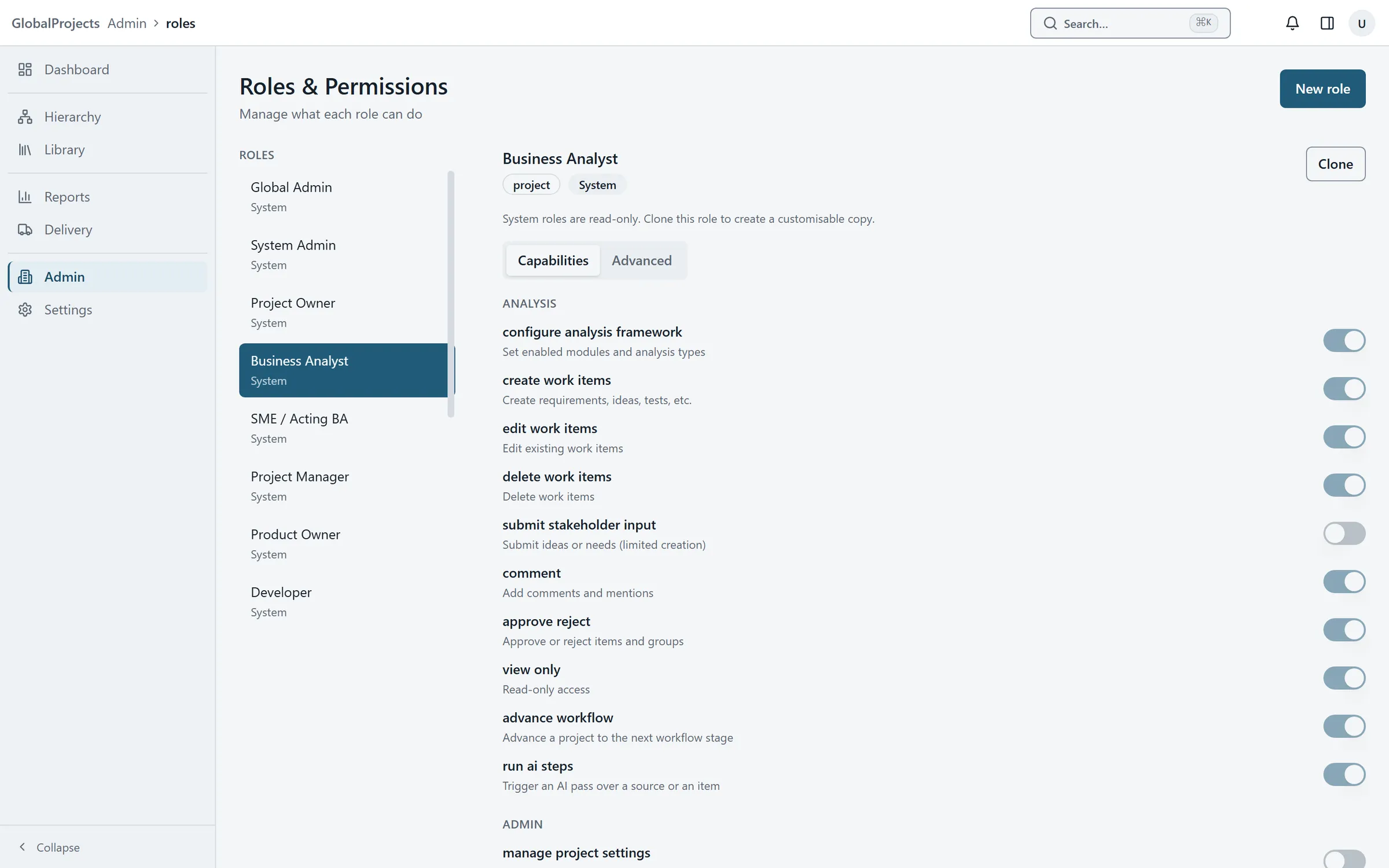
What someone can do comes from their roles. A role is a set of permissions, such as create work items or approve reject. A person can hold a role across the whole company, or on particular projects only. Every permission is checked when the action happens, not just hidden on the screen.
See what a role can do
- In Admin, on the Overview tab, choose Roles & Permissions.
- Choose a role in the list on the left.
- On the Capabilities tab, read which permissions are switched on. Each has a short description under it.
Make a role of your own
- Choose a built-in role that is close to what you want, then choose Clone. A copy called Copy of that role appears.
- Or choose New role, type a Role name, and choose its Scope.
- Switch the permissions on and off on the Capabilities tab. Each change is saved as you make it.
- To undo your changes to a cloned role, choose Reset defaults.
The built-in roles
| Role | In short |
|---|---|
| Global Admin | Everything, across the company, including the Admin area. |
| Project Owner | Runs a project: settings, people, plan, analysis, sign-off and AI. Whoever creates a project becomes its Project Owner. |
| Project Manager | Much the same as Project Owner, including the plan. |
| Business Analyst | Writes and structures the analysis, runs the AI, signs off, reports and exports. |
| SME / Acting BA | Creates and edits the analysis, runs the AI and signs off, but cannot delete items. |
| Product Owner | Creates, edits and signs off; runs the AI. |
| Developer / Architect / Designer | Creates and edits items and comments. |
| Tester / QA | Creates and edits items, comments, and records test results. |
| Reviewer / Manager | Reads, comments, signs off and runs reports. |
| Stakeholder | Reads, comments and adds ideas. |
| Guest | Reads and adds ideas. |
| Viewer | Reads only. |
Built-in roles cannot be changed. Clone one to make your own version.
Across the company, or on a project
A project role such as Business Analyst usually applies to the projects someone is assigned to. If you give it across the company instead, under Global Roles on the person’s page, it lets them create projects of their own and become Project Owner of each. It does not give them access to everyone else’s projects.
Giving a project role from inside a project
A project’s Project Owner or Project Manager can give people a role on that project from Project Setup, on the Ownership tab, under Assign owner: choose the person, the role and the area, then Assign.
Advanced
The Advanced tab on a role holds fine-grained settings for each permission. Most companies never need it.
Related articles
- Invite people and manage their access
Invite someone with a link, choose their role and projects, and change the roles of people already in your company.
- Organisations
Create organisations for the divisions of your company, switch between them, and set each one's name, approved email domains and outside access.
- Request and give sign-off
Ask a named person to sign off a requirement or a whole branch, approve or reject what is waiting for you, and see what happens when approved work changes.