Your company's sign-in page
Put your company's logo, colours and wording on the page your people see before they sign in, and preview it before you save.
Updated 19 October 2026
Your company's sign-in page can carry your own logo, colours and wording, so people know they are in the right place. The same branding appears on the pages for creating an account and resetting a password.
Brand the sign-in page
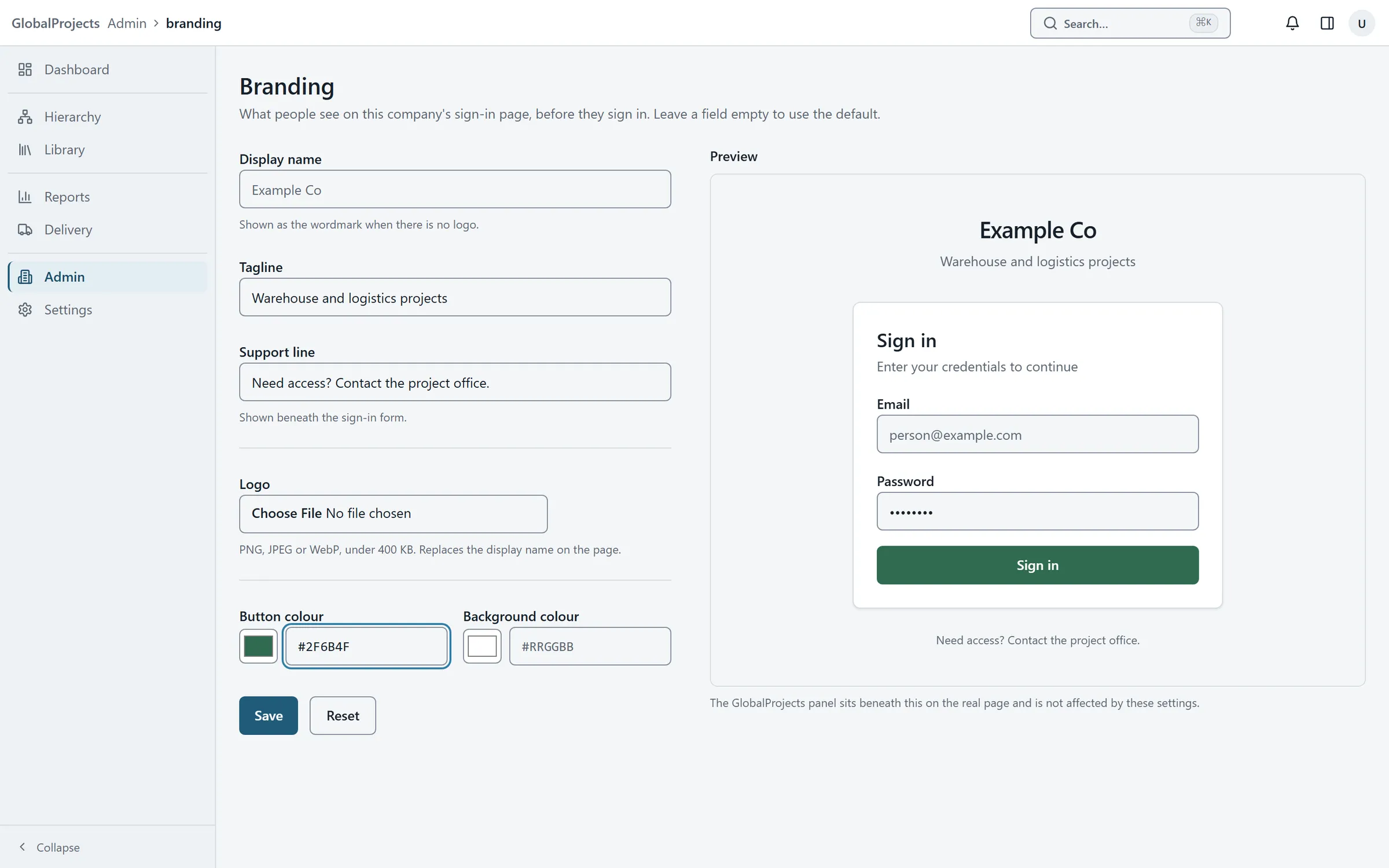
- In Admin, on the Overview tab, choose Branding.
- Type a Display name. It is shown when there is no logo.
- Add a Tagline and a Support line, such as who to contact for access.
- Under Logo, choose a PNG, JPEG or WebP image under 400 KB.
- Set the Button colour and Background colour, with the colour picker or as a code such as #205B79.
- Check the Preview on the right, then choose Save. You see "Branding saved".
Going back to the default
Leave a field empty to use the default. To take the logo off, choose Remove logo and Save. Reset throws away changes you have not saved yet.
What it does not change
The GlobalProjects panel at the bottom of the sign-in page stays as it is. Inside the workspace, after people have signed in, the screens look the same for every company.
Who can do this
Changing the branding needs company administration rights. Without them you see “Changing the company branding needs company administration rights.”
Related articles
- Organisations
Create organisations for the divisions of your company, switch between them, and set each one's name, approved email domains and outside access.
- Invite people and manage their access
Invite someone with a link, choose their role and projects, and change the roles of people already in your company.
- Sign in and find your way around
Sign in to your company's workspace, accept an invitation, and learn the top bar, the left navigation, search and notifications.